
Facilitating a standup
By default, any Team Admin or Team Member can facilitate a standup.
A Team Admin can change this in the team's SETTINGS —> ROLES & PERMISSIONS, under CREATE AND FACILITATE STANDUPS.
Team observers and guests cannot facilitate.
A standup does not need a facilitator. With the default settings, each day's standup opens on its own on the STANDUP step. People post when it suits them, and it closes itself at the time set for the series.
Facilitate when you want to run the standup live, for example on a video call. As the facilitator, you can:
- Move everyone through the steps together
- Walk through each person's update, one card at a time
- Set a timer
-
Close the standup early, or reopen it

Starting to facilitate
-
-
Click START FACILITATING in the title bar. You are now the facilitator, and the button changes to YOU ARE FACILITATING.

-
The top of the page now shows every step that is enabled: WELCOME and ICEBREAKER (optional), then STANDUP and CLOSE. Click a step to move everyone to it.
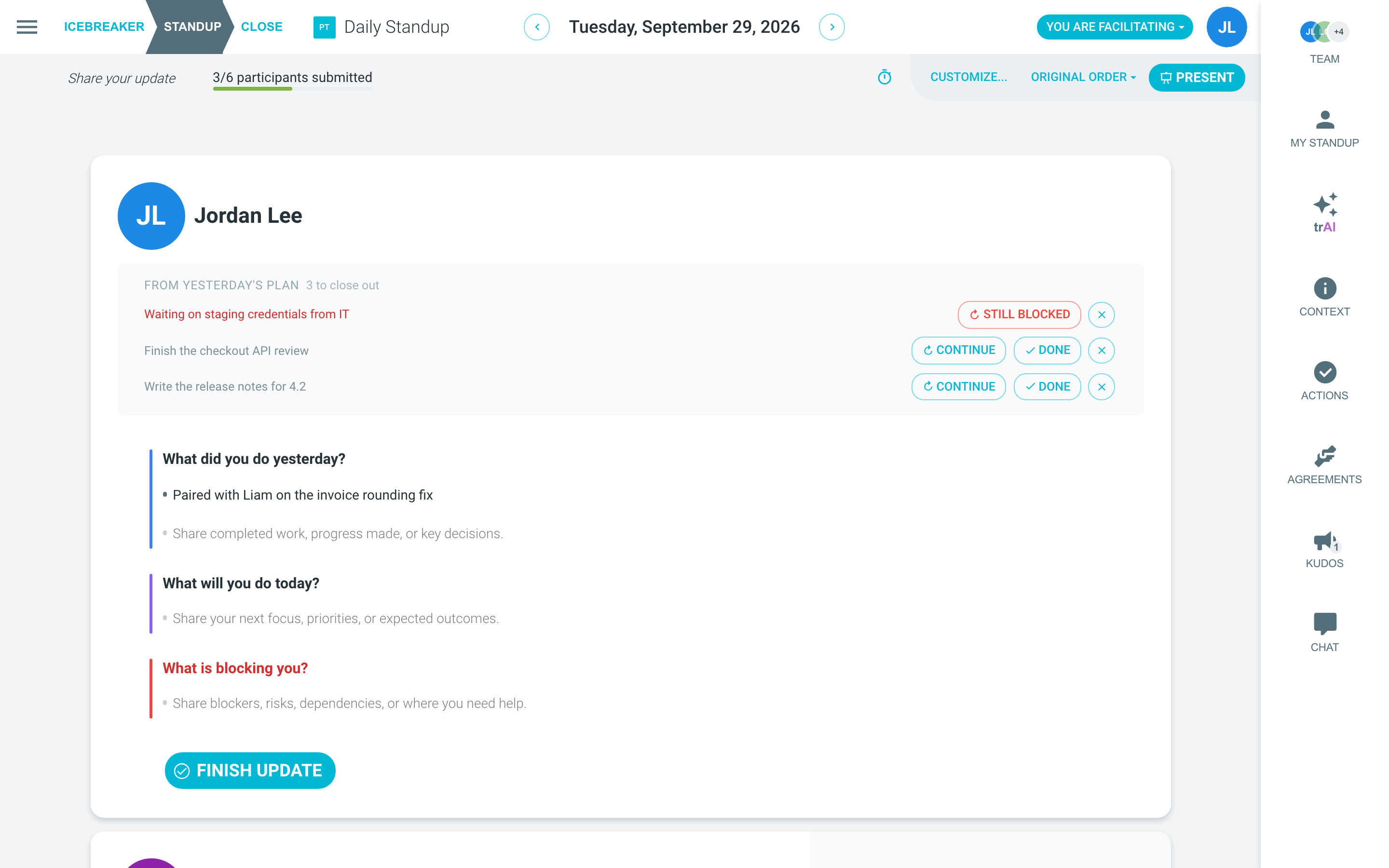
While nobody is facilitating, participants only see the STANDUP step.
Handing over or stopping
A facilitator-only participant cannot post standup updates. They can still comment, react and give kudos. See Inviting Facilitators.
If you are the facilitator, you can:
- STOP FACILITATING - you stop being the facilitator. If you were the only one, the standup goes back to collecting updates on the STANDUP step.
-
HAND OVER TO - choose a team member to facilitate instead of you.
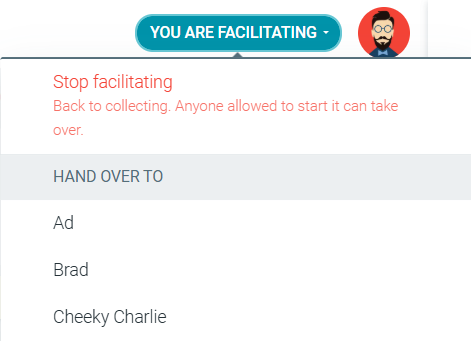
If someone else is facilitating, you can:
-
TAKE OVER FACILITATION - shown to people who are not facilitating. It adds them as a facilitator. The current facilitator keeps the role.
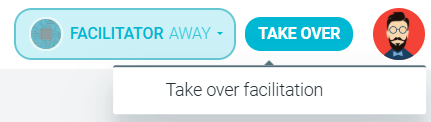
If no facilitator is online for 30 seconds, the title bar shows AWAY and a TAKE OVER button. Nothing in the standup changes while the facilitator is away.
A standup can have more than one facilitator. To add another facilitator, see Assigning or changing facilitators.
Presenting updates
On the STANDUP step, facilitators have extra controls at the top of the page.
-
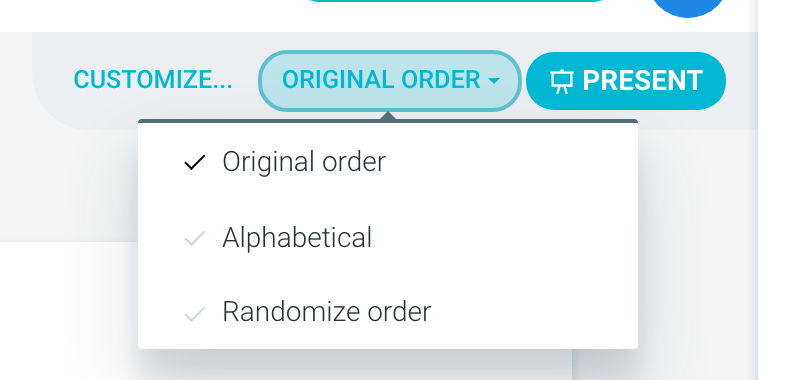
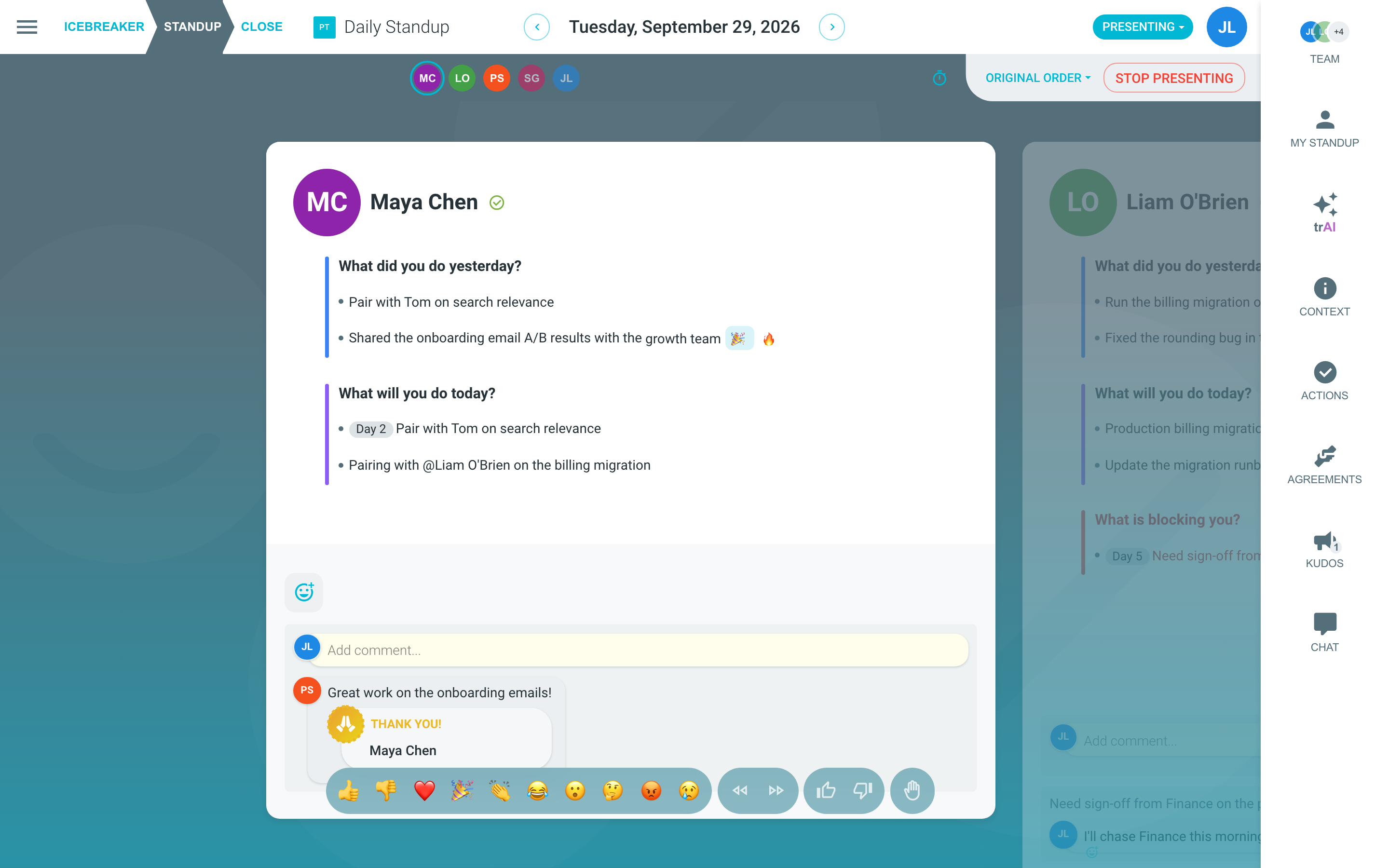
Use the sort menu to choose the order of the cards: ORIGINAL ORDER (who posted first), ALPHABETICAL or RANDOMIZE ORDER.
-
Click PRESENT. Everyone's screen follows you through each person's card, one at a time.
-
Use the arrow keys or the participant icons at the top of the page to move from person to person. Everyone can add live reactions.
-
Click STOP PRESENTING to let people browse on their own again.

People who have not finished can keep writing while you present, in the right MY STANDUP pane.

To change today's questions, click CUSTOMIZE... on the STANDUP step, then open the QUESTIONS tab.

If you are a Team Admin, set APPLY CHANGES TO to THIS STANDUP ONLY. Otherwise future standups change too. See Customizing your standup.

For more about presenting, see Using presentation mode.
Using the timer
Click the TIMER icon to set a countdown for the current step. You can also set a time for each step before the standup, in the PROCESS tab. See Meeting timer.

Closing and reopening a standup
You do not need to close a standup yourself. It closes on its own at the close time set for the series. If the series has no close time, it closes when the next scheduled day begins.
To close it early, move everyone to the CLOSE step. Moving to CLOSE closes the standup for everyone. After that, nobody can add or change updates. The summary goes to the team straight away, not at the close time.
To reopen a closed standup, click REOPEN MEETING in the title bar. Anyone who can facilitate a standup can reopen it. You become the facilitator, and everyone goes back to the STANDUP step.

To learn what happens after a standup closes or is reopened, see The standup process - CLOSE.