
Customizing your standup
You can customize a standup series to fit your team. This includes:
- The series name and context
- Questions, with their images, colors, hints and status types
- Process steps
- Recurrence and notifications (Team Admin only)
Customizing a new standup series
-
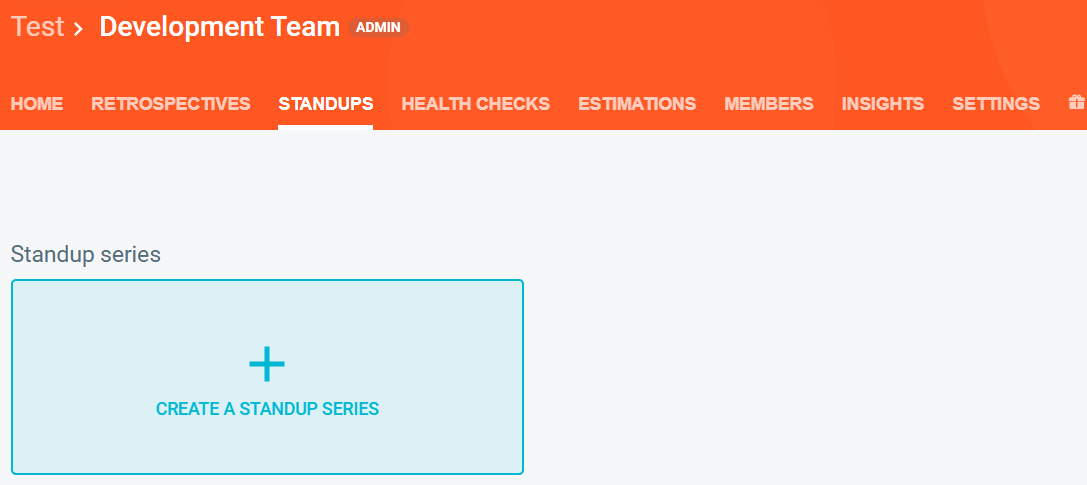
On your team's STANDUPS tab, click CREATE A STANDUP SERIES.
-
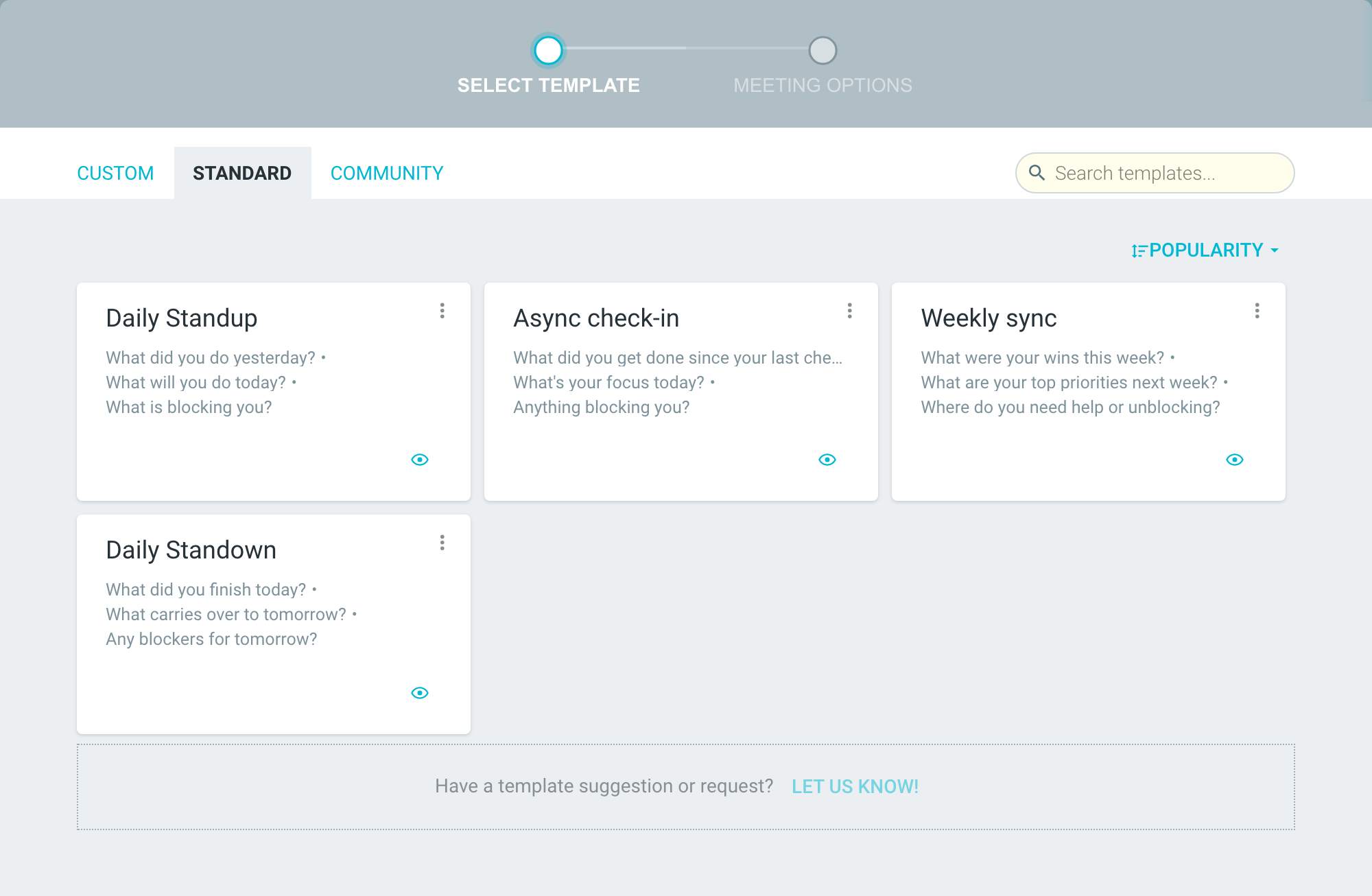
Pick a template from the STANDARD, COMMUNITY or CUSTOM tab.
-
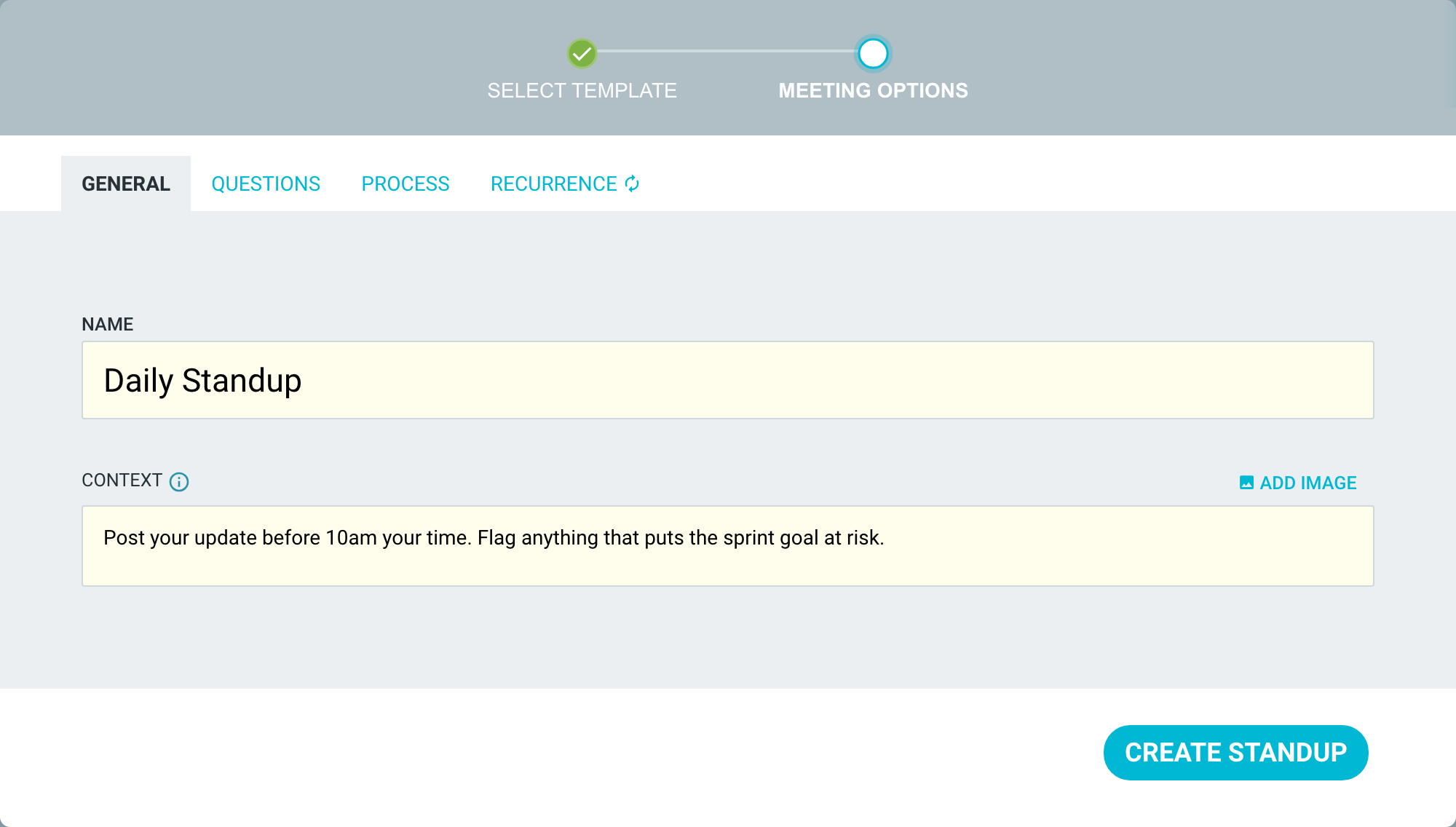
On the GENERAL tab, enter a NAME. You can also add CONTEXT, with text and an image.
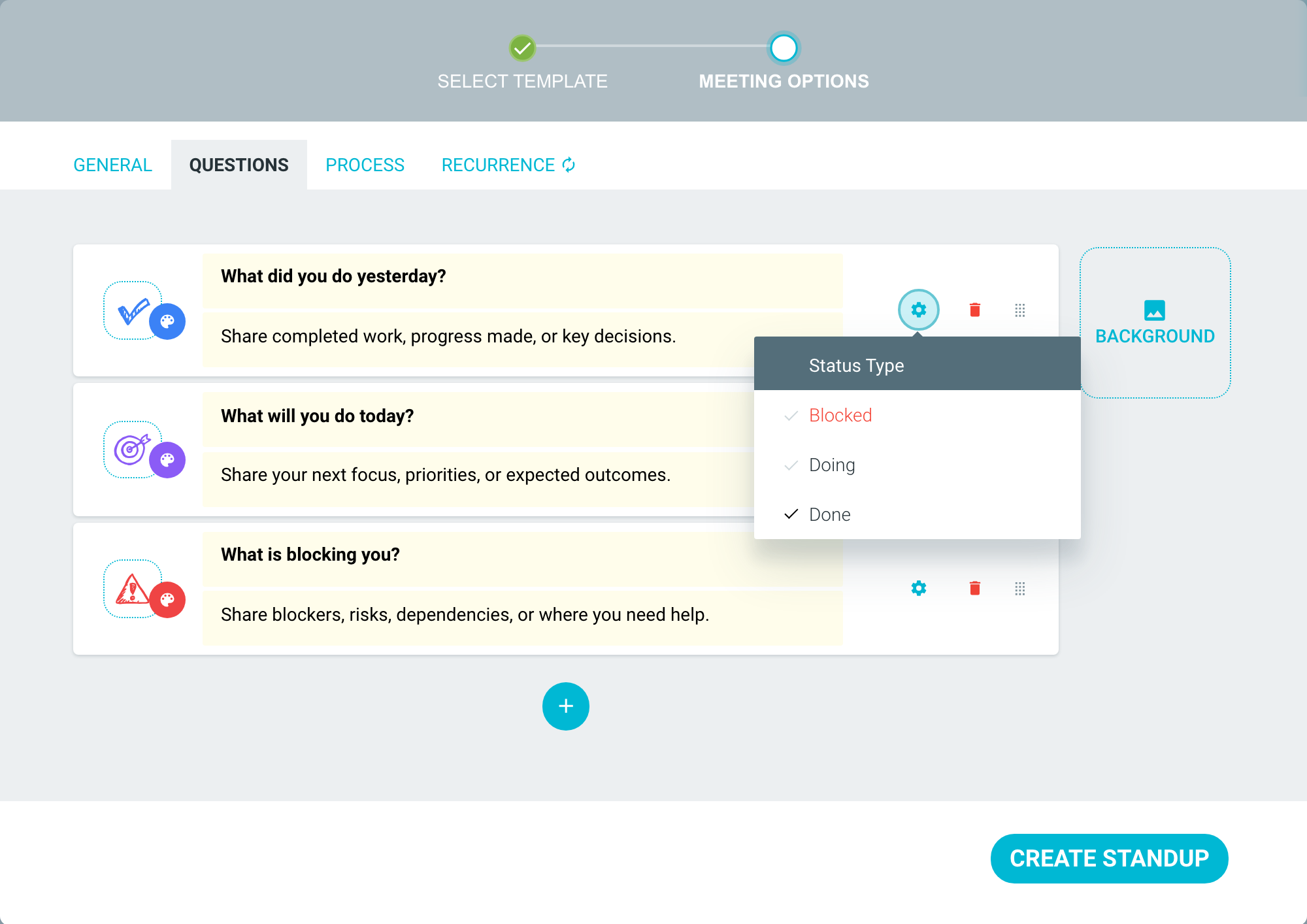
- On the QUESTIONS tab, set up each question:
- Click the icon to change it, and pick a color.
- Type the question. Every question needs a title.
- Add a description. People see it in the answer box.
- Click the gear icon on a question and choose BLOCKED, DOING or DONE under STATUS TYPE. This is optional (see below for more information).
- Drag questions to reorder them. Click + to add one. Double-click the delete icon to remove one.
-
You can also pick a background image for the standup on this tab.
-
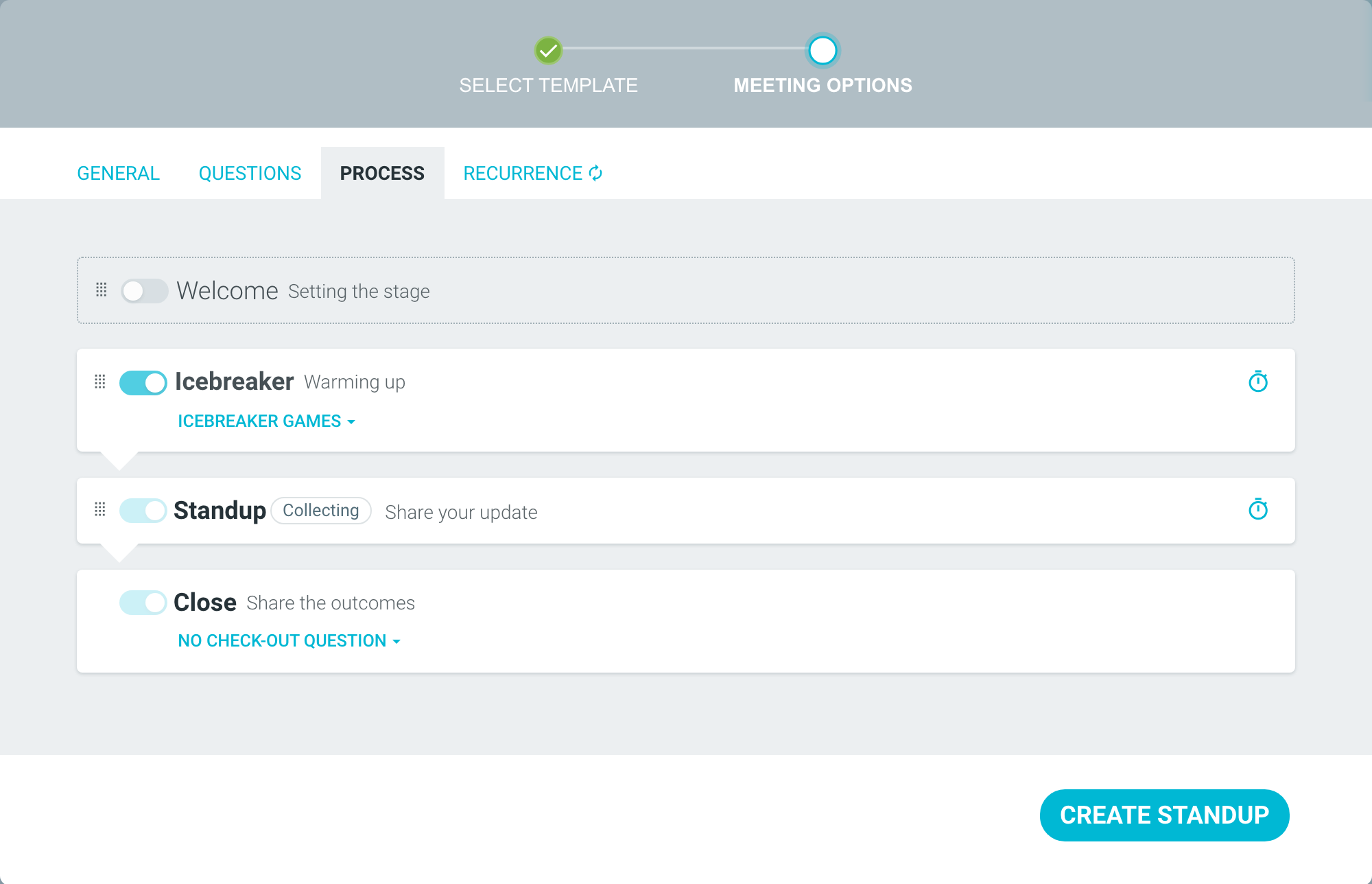
On the PROCESS tab, switch steps on or off, reorder them, and set a time for each step. WELCOME is off and ICEBREAKER is on by default. STANDUP and CLOSE cannot be switched off.
-
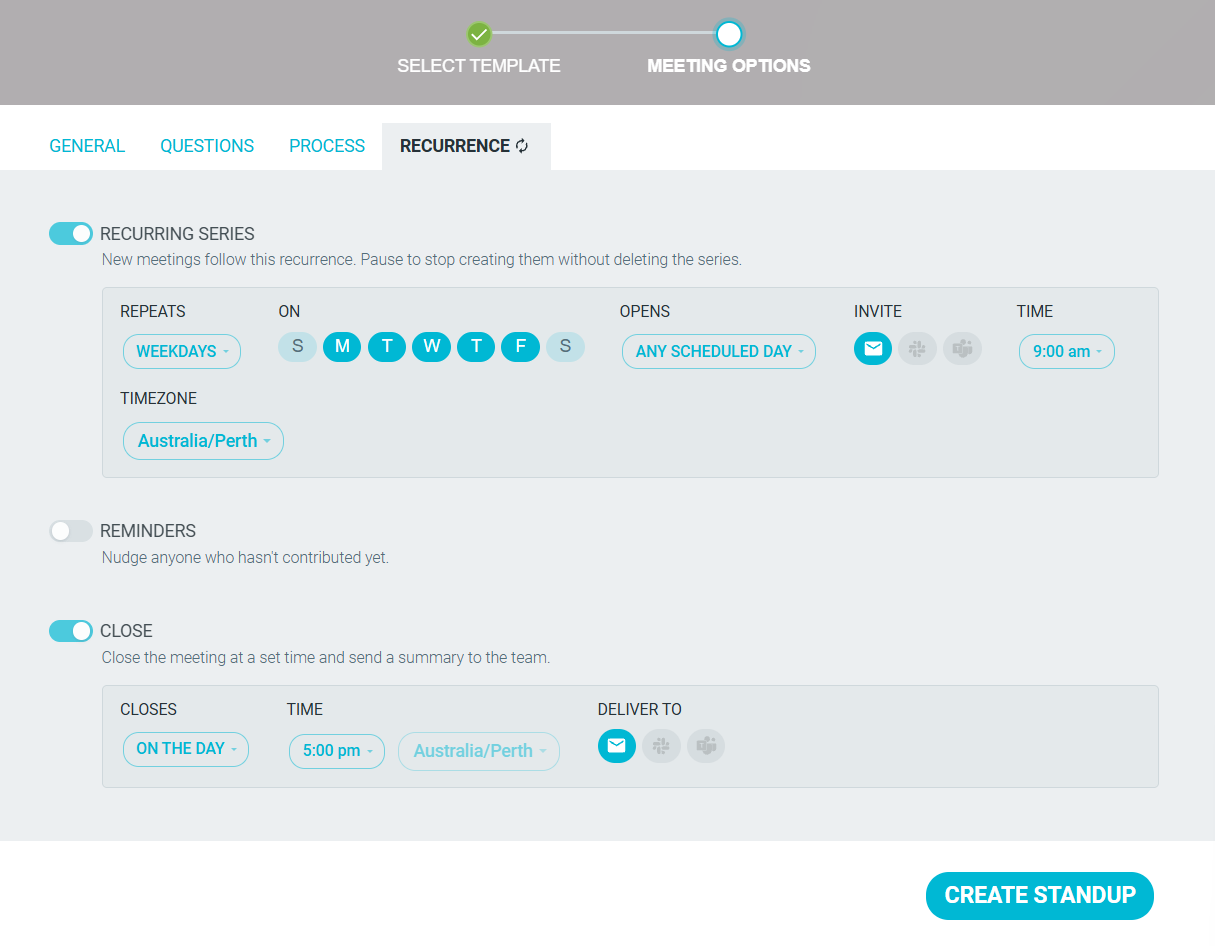
On the RECURRENCE tab, choose when the standup repeats. Only a Team Admin sees this tab. See Recurring standups.
- Click CREATE STANDUP.
How status types work
A status type tells TeamRetro what a question collects: DOING, DONE or BLOCKED. DOING and BLOCKED items carry forward to each person's next standup. The calendar on the STANDUPS tab and the CLOSE step count items by status type. See The standup process - STANDUP.

Customizing an existing standup series
Only a Team Admin can change the series. A facilitator who is not a Team Admin can change the current standup only. The name, recurrence and notifications always apply to the whole series.
-
From the team (Team Admins): on the STANDUPS tab, pick the series and click the SETTINGS icon (gear), or click OPTIONS (three dots) on the standup card on the HOME tab.

-
Inside a standup (Team Admins and facilitators): click the OPTIONS icon at the top left and choose CUSTOMIZE, or click CUSTOMIZE... on the STANDUP step.

In an open standup, a Team Admin chooses under APPLY CHANGES TO whether changes affect THIS AND FUTURE STANDUPS (default) or THIS STANDUP ONLY. In a closed standup, changes apply to future standups only.
With THIS STANDUP ONLY, they are locked. Click EDIT SERIES SETTINGS on the RECURRENCE tab to switch to THIS AND FUTURE STANDUPS.

Click SAVE CHANGES.
New questions go to new days, and to open standups nobody has posted in yet. A standup that already has updates keeps its questions, unless you change it from inside that standup.
Other changes, such as context and process steps, apply to standups created after you save. To change today's standup too, customize from inside it and choose THIS AND FUTURE STANDUPS.
Deleting and restoring a standup series
Only a Team Admin can delete or restore a standup series. You cannot delete a single day's standup. To take a break, pause the series. See Recurring standups.
-
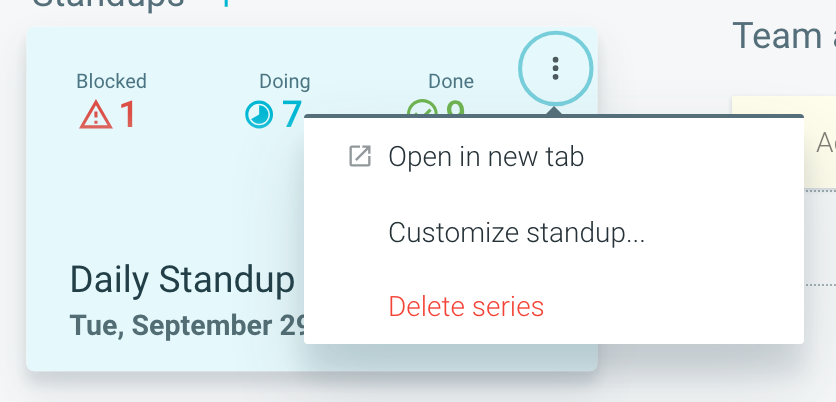
On the team HOME page, open the OPTIONS menu (three dots) on the standup card and click DELETE SERIES. You can also find DELETE SERIES at the bottom of CUSTOMIZE STANDUP when you open it from the STANDUPS tab. A paused series has no card on the HOME page, so delete it from CUSTOMIZE STANDUP on the STANDUPS tab.
-
Click DELETE to confirm. This deletes the series and all its standups.
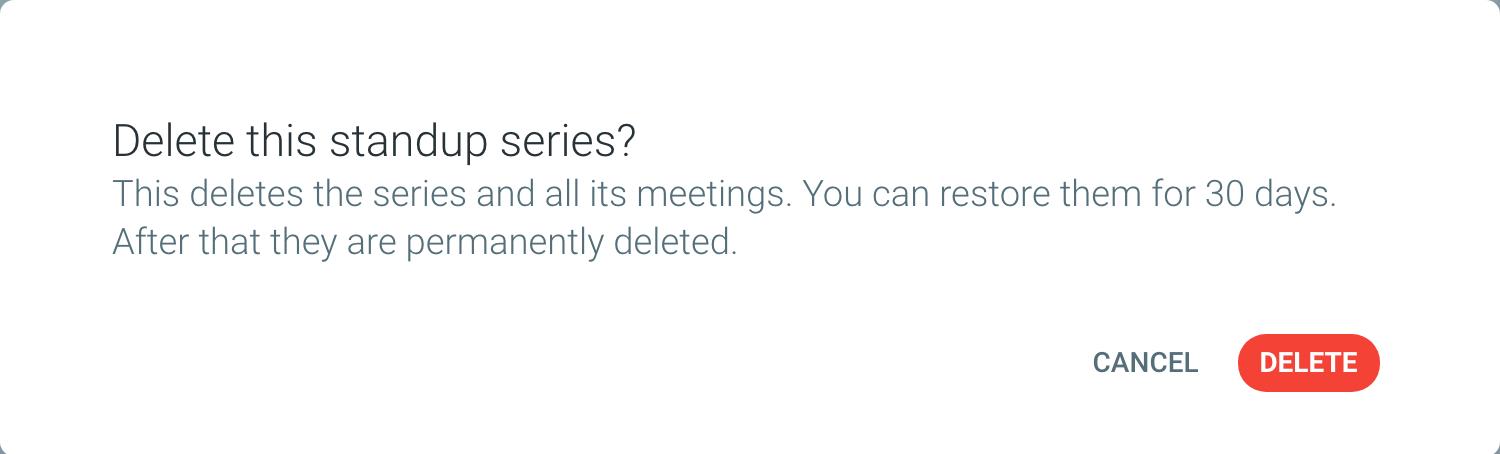
To restore it within 30 days, go to your team's SETTINGS tab, then STANDUPS. Under RECENTLY DELETED, click RESTORE. After 30 days the series is permanently deleted.
