
Creating a team standup template
To create a standup template, you must be a Team Admin.
You can create your own standup templates for your team. They appear under the CUSTOM tab when someone in your team creates a standup series.
A team standup template is only available within that team. You can also share it with other teams, or an Account Administrator can move it to the account templates. Standup templates are managed in the team's settings.
Creating a team standup template
A team template saves its name and questions only. You choose the process steps and the recurrence when you create a series from it.
-
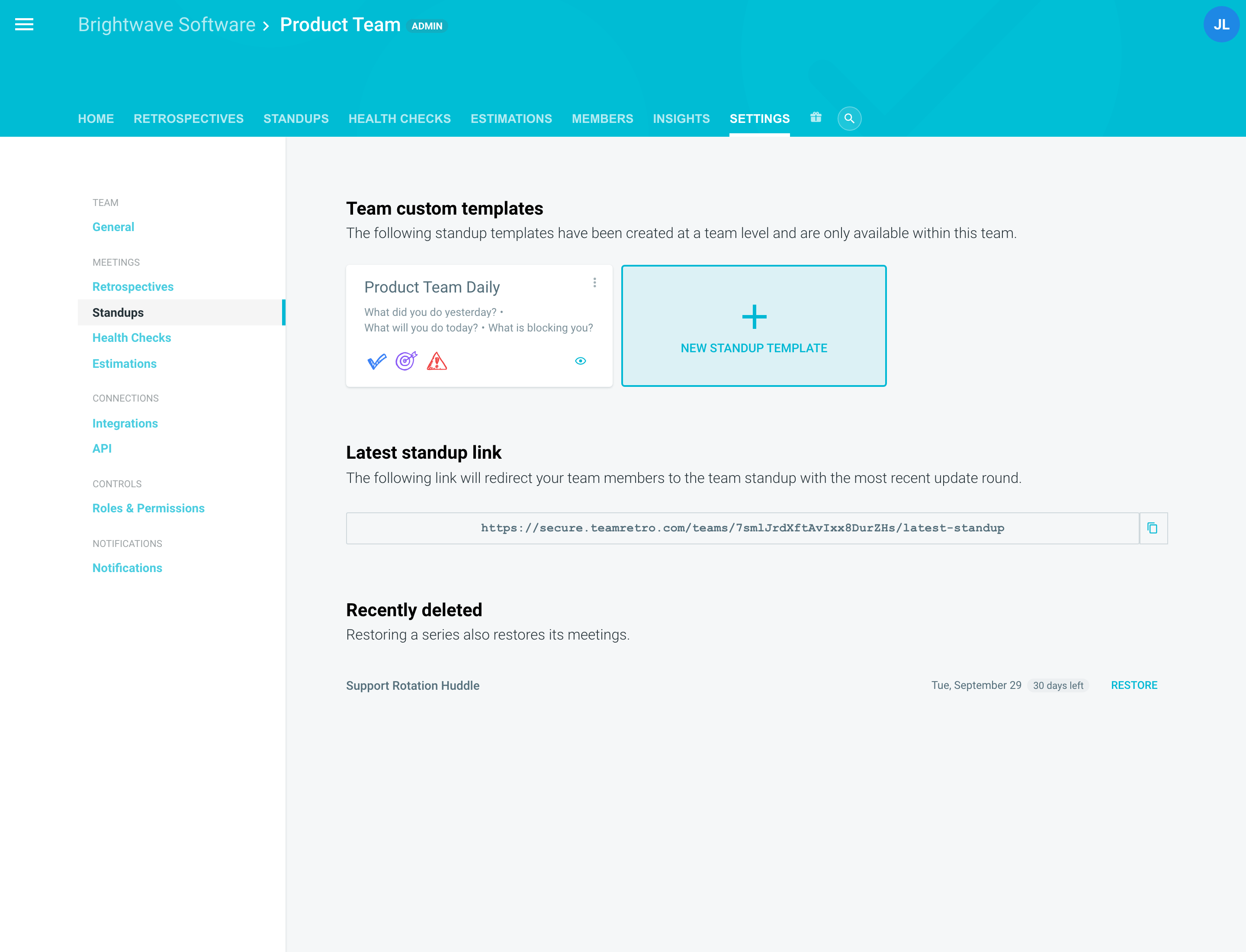
Navigate to your team and click the SETTINGS tab.
-
Click STANDUPS, then NEW STANDUP TEMPLATE.
-
Choose BLANK, or pick an existing template to copy.
-
Enter a TEMPLATE NAME.
Set up your questions. You can have up to 10. For each question:
- Click the image to choose a different one, and pick a color.
- Type the question and add a hint.
- Click the gear icon on a question and choose BLOCKED, DOING or DONE under STATUS TYPE. Each status type can be on one question only.
-
Drag questions to change their order. Click + to add a question.
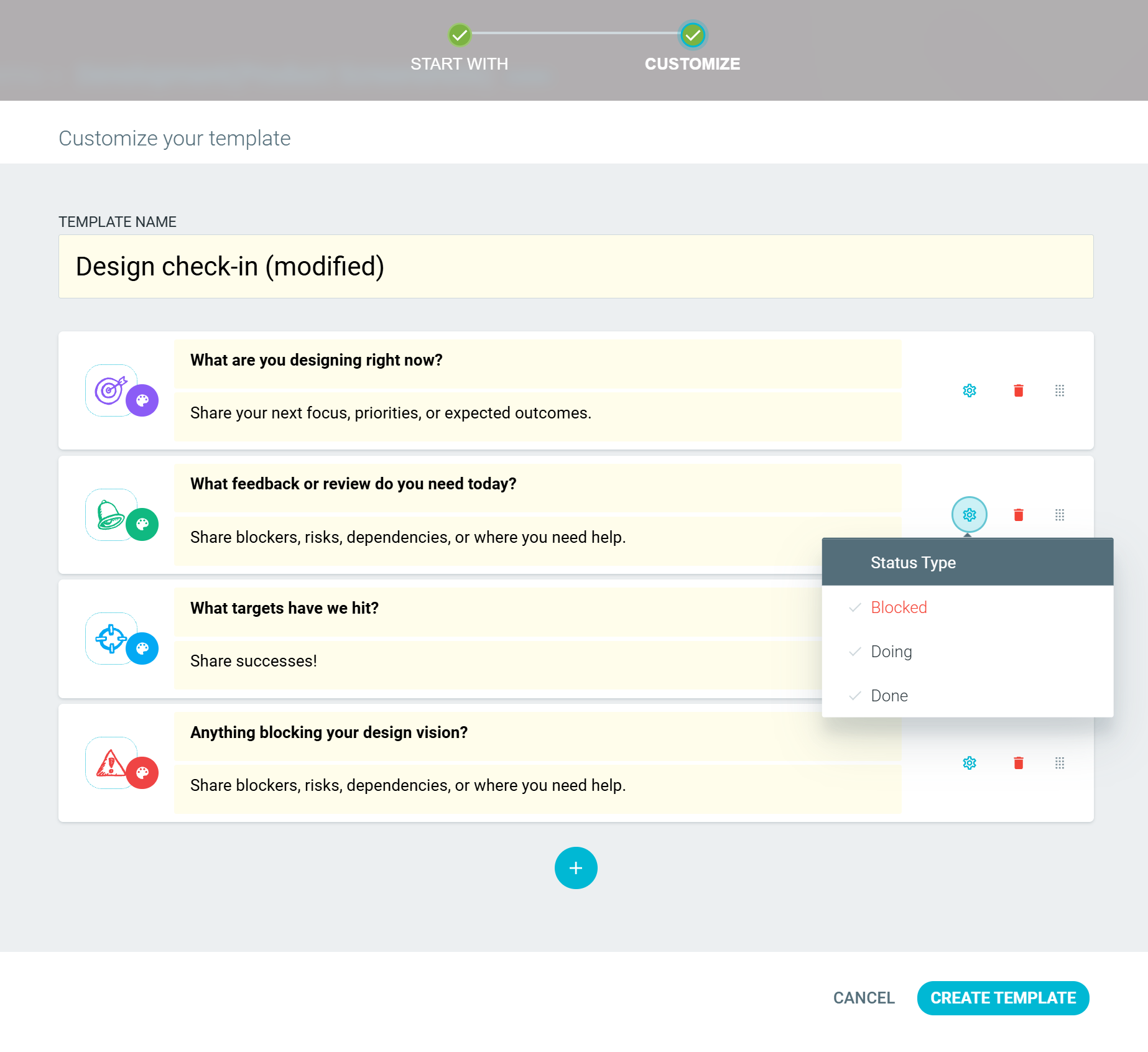
- When ready, click CREATE TEMPLATE.
Using a team template
-
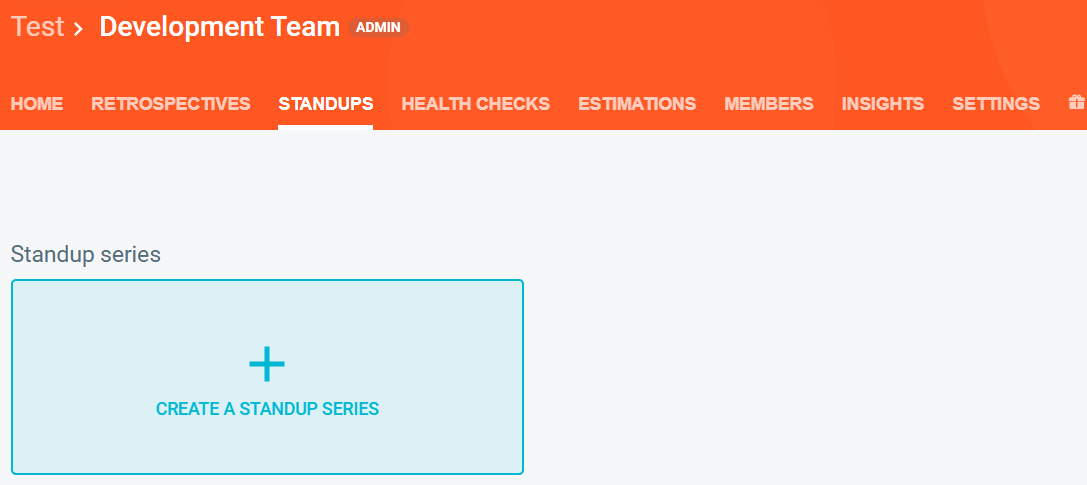
On your team's STANDUPS tab, click CREATE A STANDUP SERIES.
-
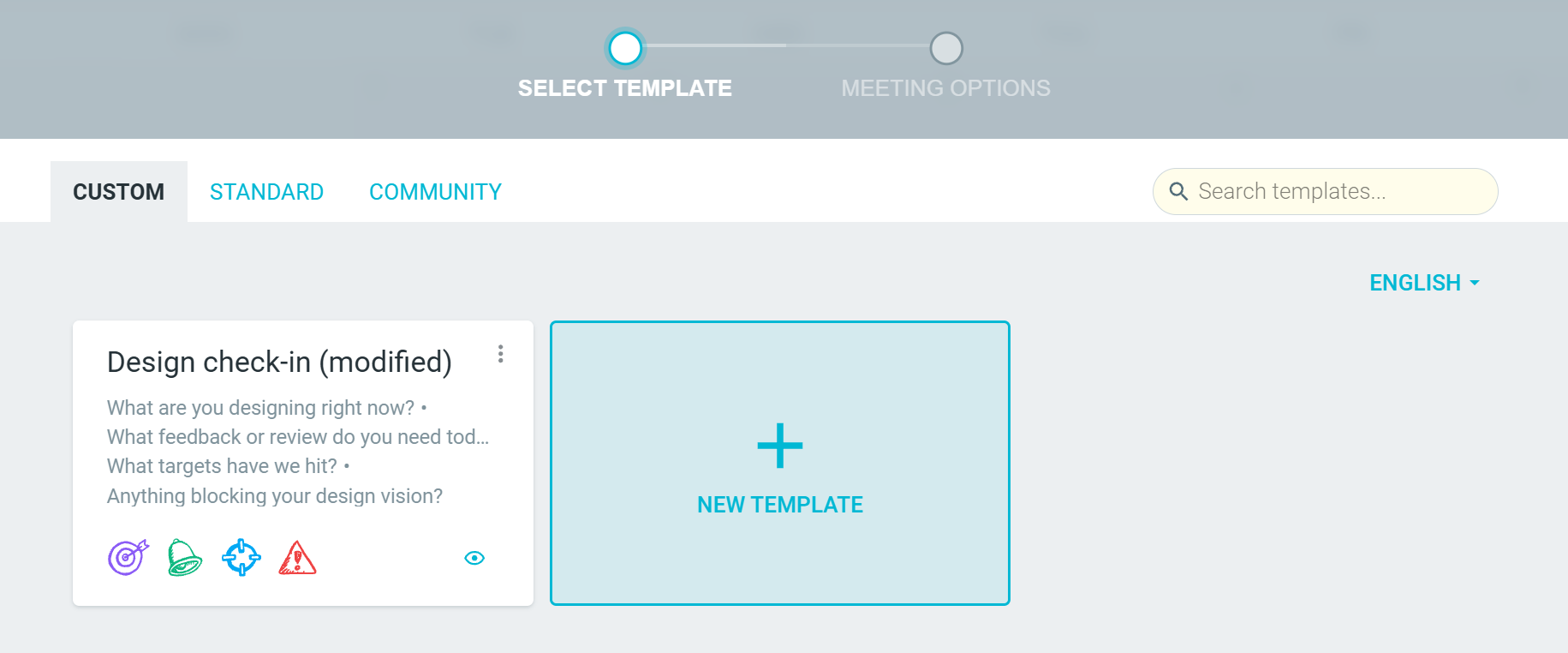
Open the CUSTOM tab and pick your template.
-
Check the settings on each tab, then click CREATE STANDUP.
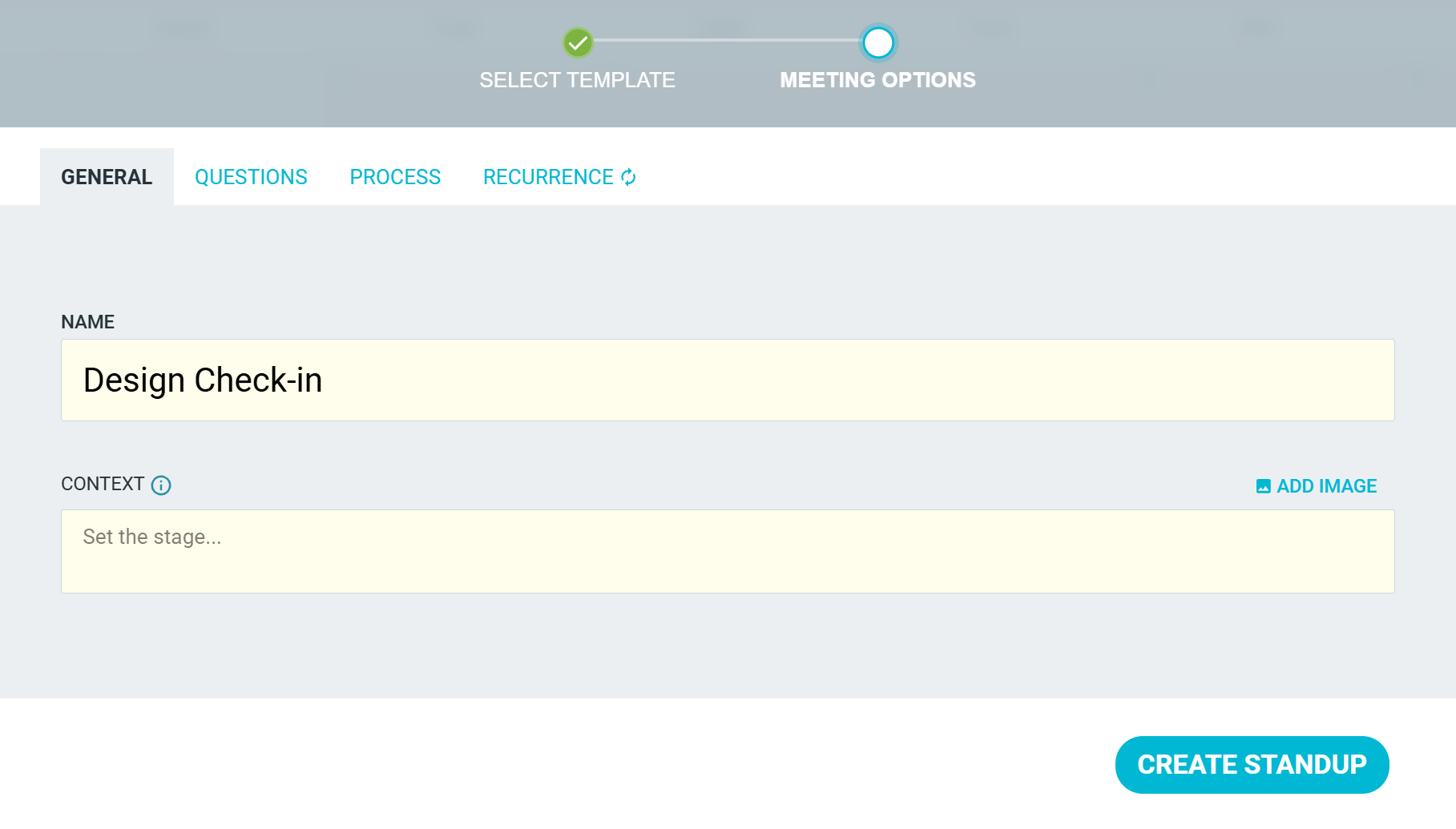
For each tab, see Customizing your standup.
Managing your standup templates
Editing or deleting a template does not change standup series that were already created from it.
- Go to your team's SETTINGS tab, then STANDUPS.
-
Click the OPTIONS menu (three dots) on a template.
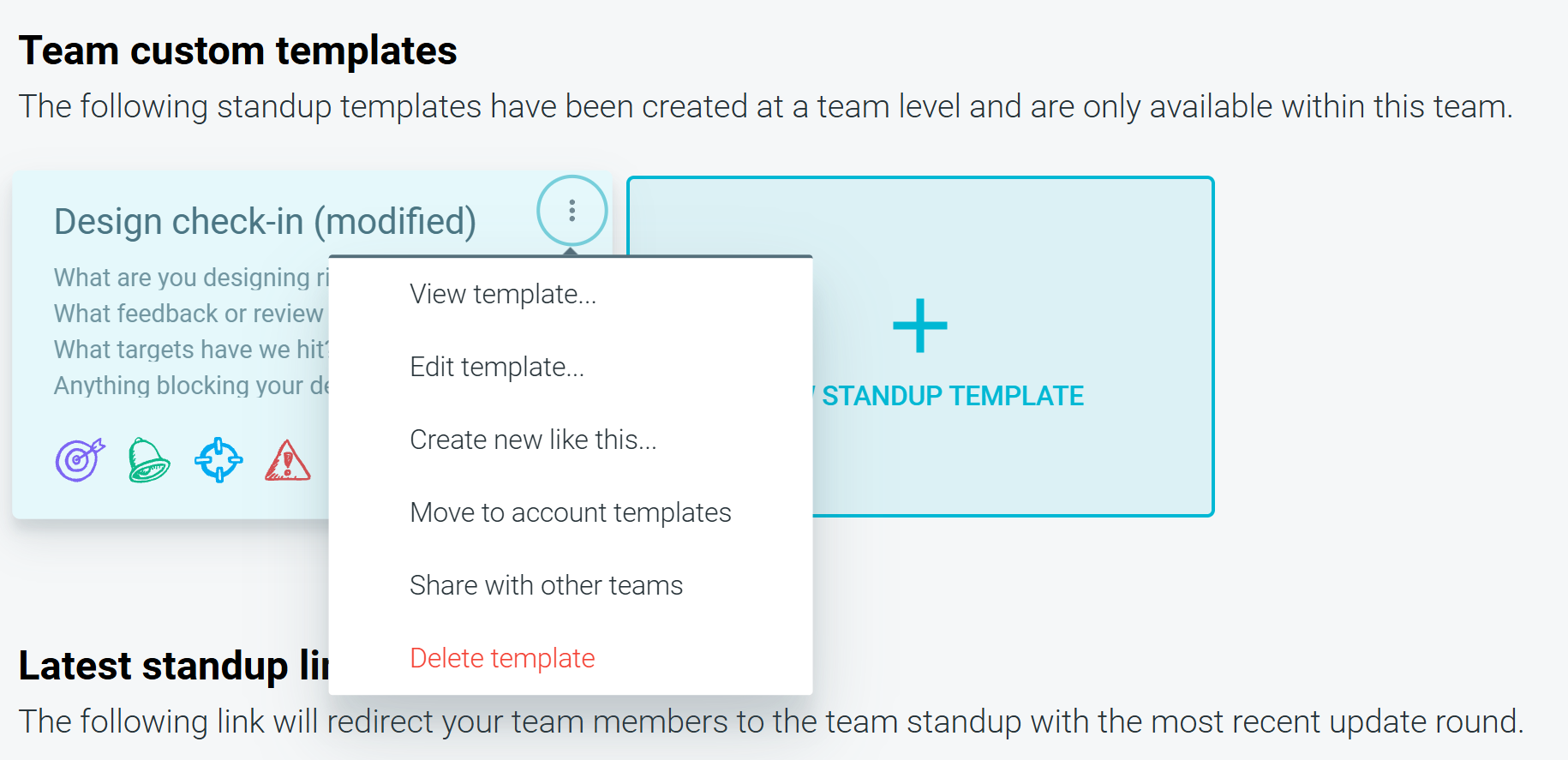
- Choose VIEW TEMPLATE..., EDIT TEMPLATE..., CREATE NEW LIKE THIS... or DELETE TEMPLATE. Depending on your role, you may also see SHARE WITH OTHER TEAMS and MOVE TO ACCOUNT TEMPLATES.
Latest standup link
The same STANDUPS settings page has a LATEST STANDUP LINK. It takes your team members to the team's most recent standup. Click the copy icon to copy it, then share it or bookmark it.

If your team has more than one standup series, the link opens the series with the most recent standup.