
Introduction to estimation meetings
What are estimation meetings?
Estimation meetings help your team collaboratively estimate the effort required for upcoming work items. Using proven techniques, teams can quickly align on complexity and effort, leading to more accurate planning and better sprint outcomes.


How it works
- Create an estimation meeting - Set up a new estimation meeting from your TeamRetro dashboard and invite your team.
- Add items to estimate - Import work items from TeamRetro or an integrated workflow tool, or add them manually. Each item will be presented to the team one at a time.
- Estimate independently - Team members submit their estimates privately, preventing anchoring bias and encouraging honest assessment.
- Reveal and discuss - Estimates are revealed simultaneously. Where there's disagreement, the team discusses their reasoning before re-voting if needed.
- Reach consensus - Once the team aligns, the agreed estimate is recorded and you move to the next item. You can keep the calculated final story point, or override it manually.
- Review and share - At the end of the session, review all items and story points relative to one another. If the team is happy, you can then share the final list or integrate it back into your workflow too.
Out of the box, TeamRetro supports 8 deck styles.
Choose the deck that works best for your team. These include:
- Fibonacci (1, 2, 3, 5, 8, 13, 21) - The most popular choice, reflecting the natural uncertainty in larger items.
- T-Shirt Sizes (XS, S, M, L, XL) - A simpler, less numerical approach that works well for high-level sizing.
-
Sequential (1 to 9) - Straightforward sequential numbering.
See the full list of estimation decks here.
You can also create custom estimation decks for more specific use cases.
Creating an estimation meeting
-
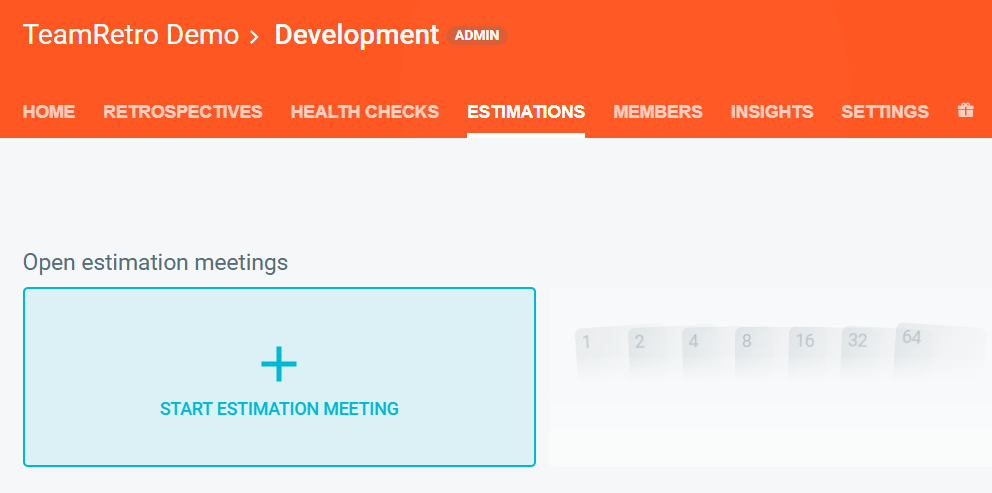
Navigate to your team's ESTIMATIONS tab.

-
Click START ESTIMATION MEETING.
Running an estimation meeting
-
ICEBREAKER (Optional)
In the ICEBREAKER step, you start by setting the tone with an icebreaker question. This encourages early participation and helps everyone get comfortable before diving into the main activities. A fun prompt can boost engagement and create a psychologically safe environment.

-
WELCOME (Optional)
In the WELCOME step, the facilitator introduces the purpose of the Estimations Meeting. A short welcome message can help align expectations and explain the meeting flow and meeting expectations. The facilitator can also include a CHECK IN QUESTION to better gauge participant mood.

-
OPEN ACTIONS (Optional)
In the OPEN ACTIONS step, you can take a moment to review open action items from previous meetings. This is a great way to keep the team accountable, celebrate wins, and clear any blockers. Use PRESENT mode to walk through actions and update their status together.
You can also add any open actions to your upcoming estimation list.

-
PREPARE
In the PREPARE step, you can create a list of items for your team to estimate. You can IMPORT items or manually add them to your list.

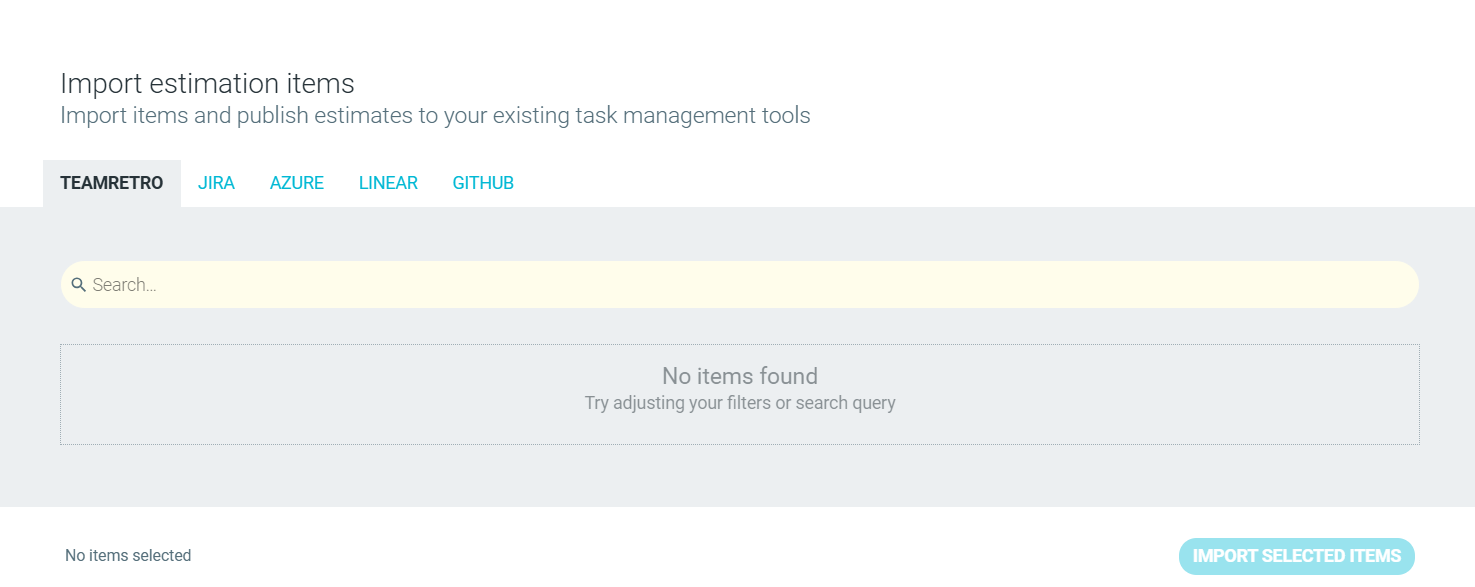
Choose your estimation deck
You can choose your preferred deck style from one of 8 pre-set options, or alternatively you can create your own. If you switch your deck style during a meeting, the previous items will display their last known value. You may have to go back through and re-estimate items on your list.

-
ESTIMATE
The ESTIMATE step is where the real sizing work happens. Each item is presented to the group one at a time. The group then discusses any questions or assumptions before estimating privately. Final scores are revealed with a calculated average. This can be overridden manually or you can have the team re-estimate as needed.

-
REVIEW
The REVIEW step shows the summary of all estimated items. You can sort this by point value, or by the most mixed results. Debrief with the team as needed.
You can add additional action items and team agreements, assigning owners and due dates to ensure accountability.

-
CLOSE
Close the meeting by running an optional check out question, reviewing the key metrics of the session.
- If you have integrated your workflow apps such as Jira or Confluence, you can PUBLISH meeting summary, estimations, action items and agreements to your workflow tool.
- You can also DOWNLOAD the results, which you can SHARE with the team, in PDF, MD, CSV or EXCEL format. Learn More.

You can also see an overview of the meeting's estimations.

Your team's ESTIMATIONS page displays an overview of open and closed meetings.
