Whiteboards
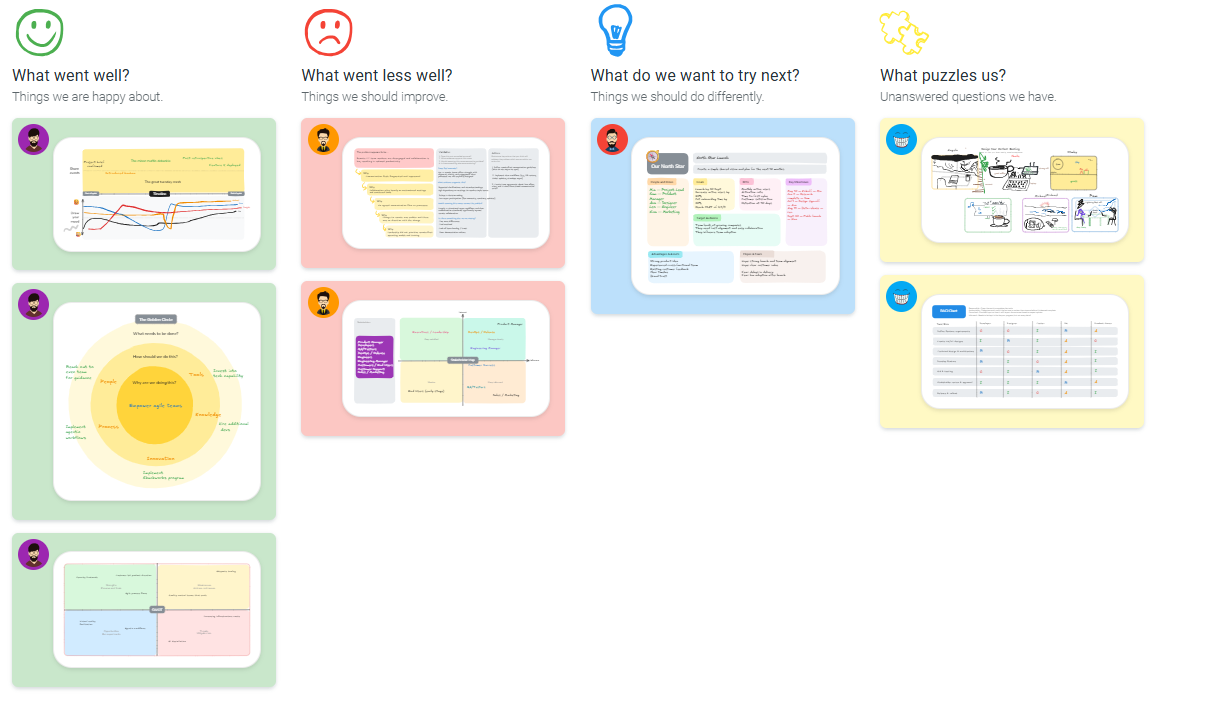
Collaborative Whiteboards let you add a shared visual workspace to any idea or comment in a retrospective meeting. Powered by Excalidraw, whiteboards help your team sketch diagrams, map frameworks, and collaborate visually without leaving TeamRetro.

Whiteboards work in all of TeamRetro's meeting options — Retrospectives, Health Checks, Maturity Model Meetings and Estimations.
Article Contents:
Real-time collaboration
Multiple participants can draw on the same whiteboard simultaneously. You'll see live cursors and a facilitator can use follow mode to guide participants to the same view. Whiteboards switch to view-only mode during the Review and Close steps to keep the focus on discussion.

The Whiteboards pane
The Whiteboards pane gives you a single view of every whiteboard in your session. This includes both meeting-level boards and any boards attached to ideas or comments. Click any thumbnail to jump straight in.
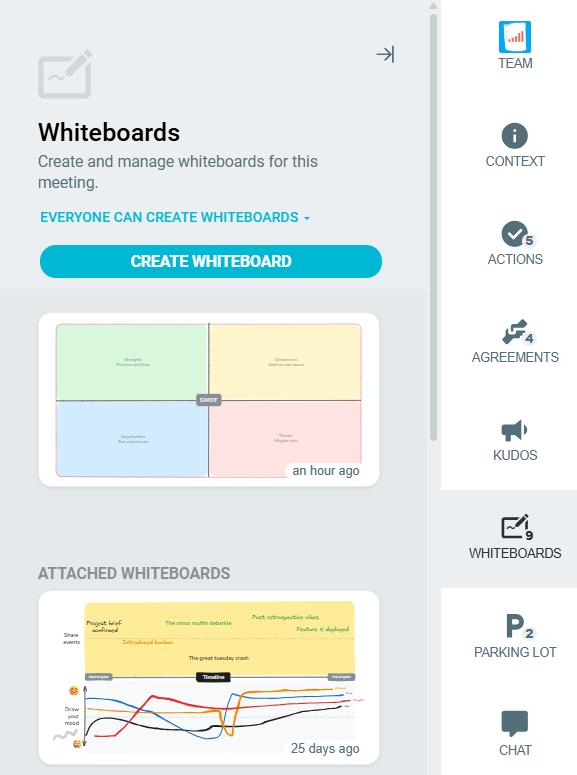
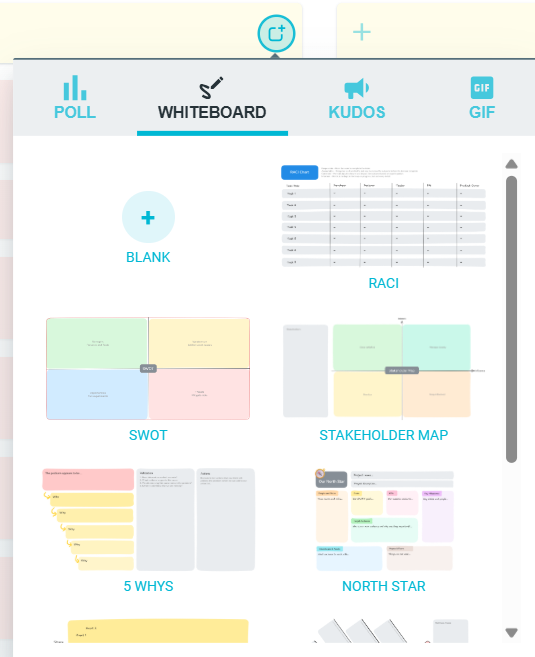
To create a new meeting-level whiteboard, click CREATE WHITEBOARD to open the template picker. Choose from an array of templates:
RACI — Responsibility assignment matrix
SWOT — Strengths, Weaknesses, Opportunities, Threats
Stakeholder Map — Map out key stakeholders and influence
5 Whys — Root cause analysis
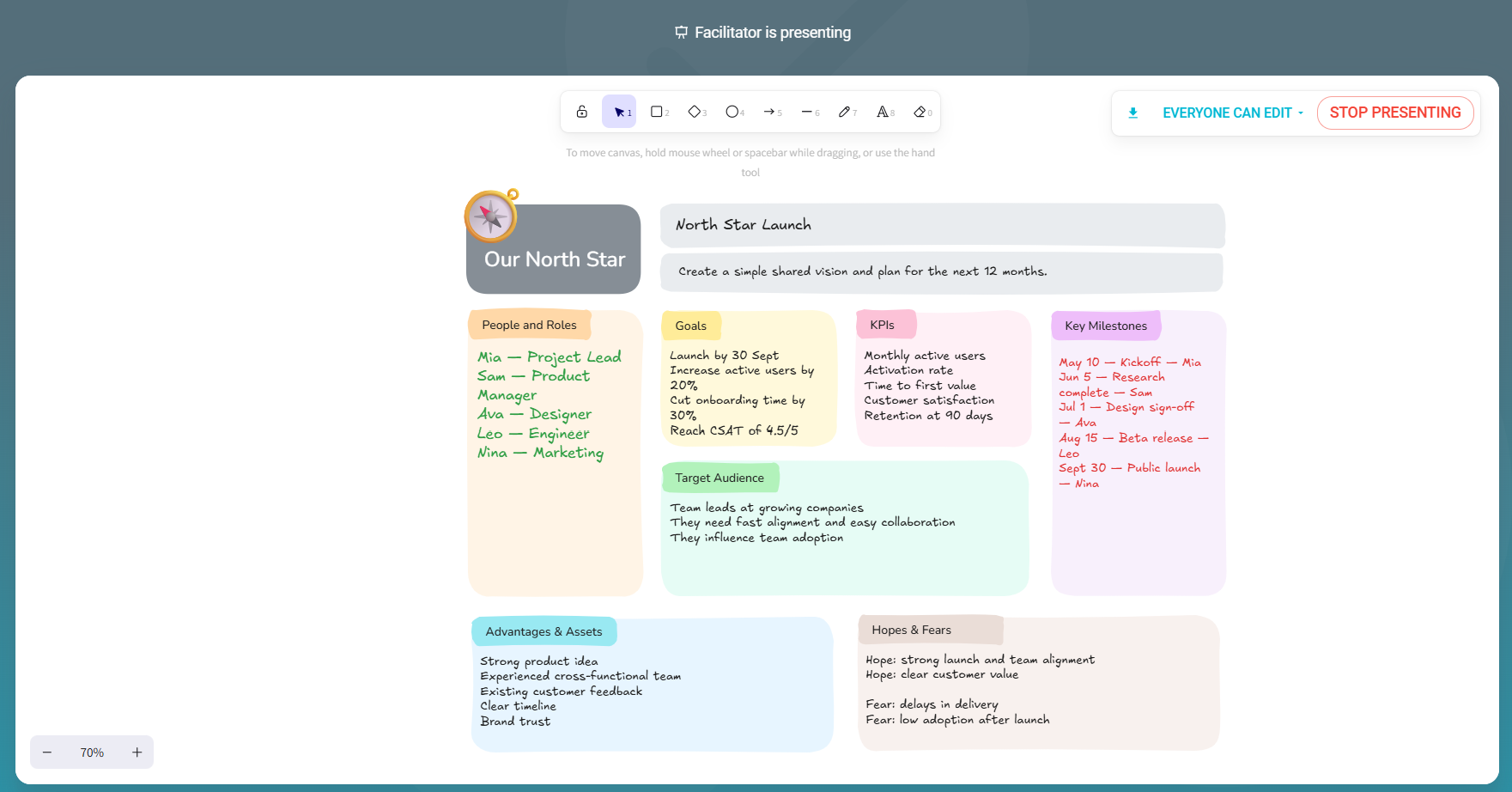
North Star — Align on your guiding metric
Timeline — Visualize events over time
Fishbone Diagram — Cause and effect analysis
Impact Effort Matrix — Prioritize by effort vs. impact
The Golden Circle — Why, How, What framework
Alternatively, start with a blank template, and the board will be created and attached to the meeting.
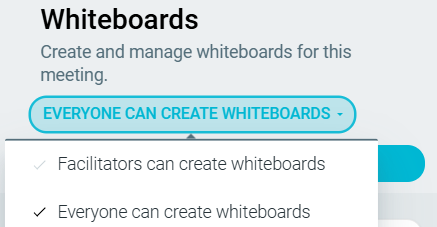
At the top of the pane, you can control who is allowed to create whiteboards:
- Everyone can create whiteboards (default)
- Facilitators can create whiteboards
Additionally, you can right-click any board in the pane to delete it.
How to add a Whiteboard as an idea
-
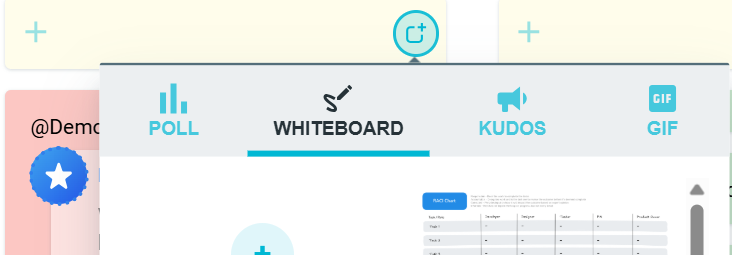
Within your meeting, under the topic column you wish to add the Whiteboard to, click on the OPTIONS icon.
-
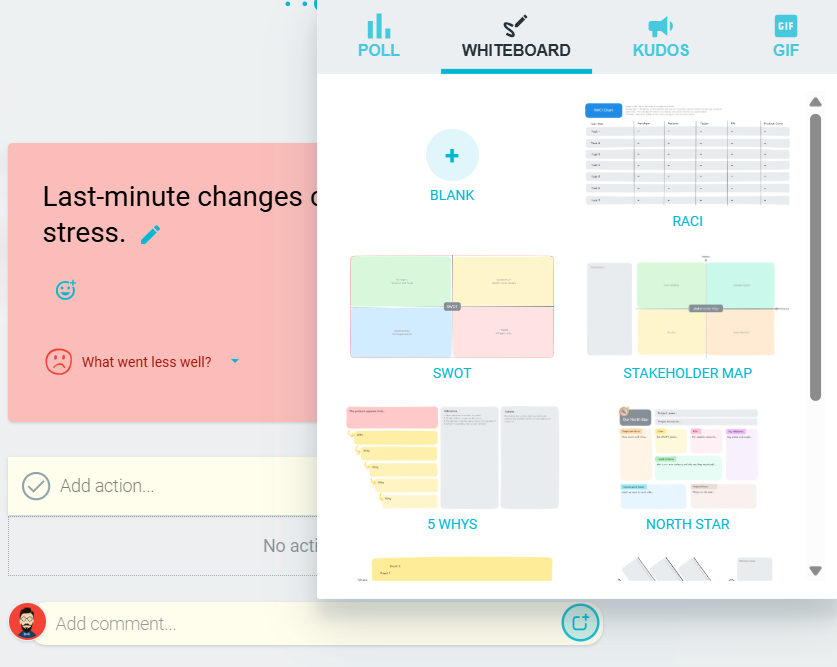
Under the WHITEBOARD tab, start from a blank canvas or choose from one of our pre-built framework templates.
-
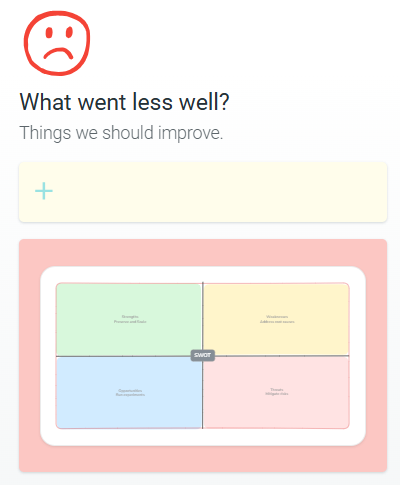
Your selected template will then be submitted as an idea under the selected column among your other ideas. Click on it to access the whiteboard.
How to add a Whiteboard as a comment
-
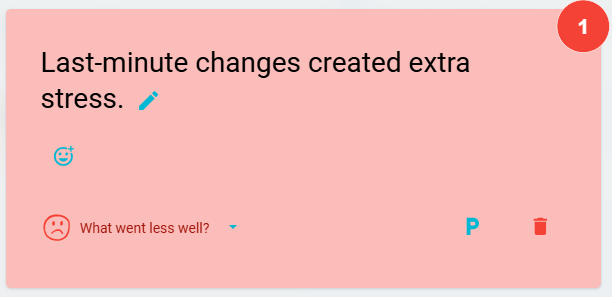
Click on a specific idea or enter PRESENT mode.

-
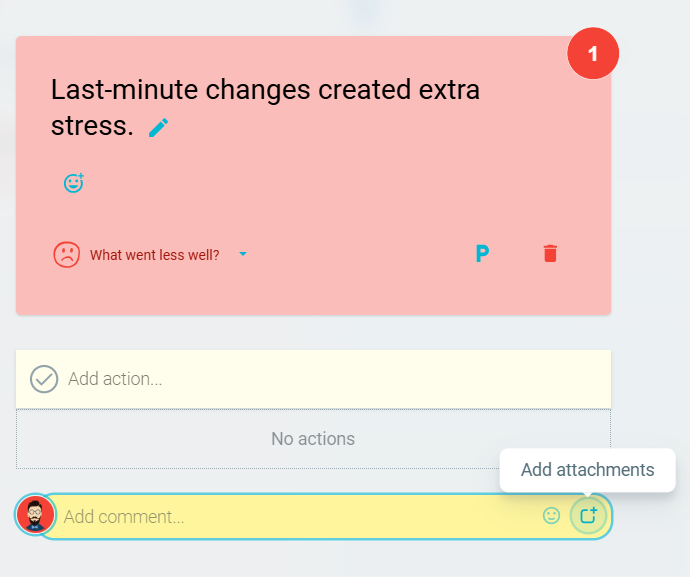
In the comment text field, click on the OPTIONS icon.
-
Under the WHITEBOARD tab, start from a blank canvas or choose from one of our pre-built framework templates.
How to add a Whiteboard as a chat message
-
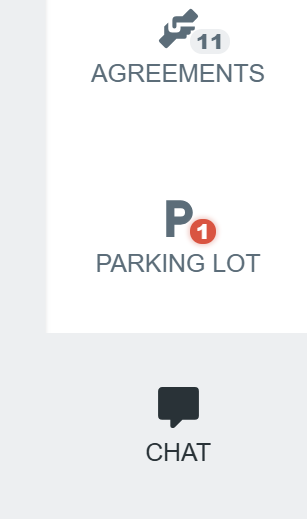
Open the CHAT tab from the right-hand side panel within your meeting.
-
Decide whether FACILITATORS CAN POST MESSAGES or EVERYONE CAN POST MESSAGES. Otherwise, keep it DISABLED if you do not want any Whiteboards or messages in the chat.

-
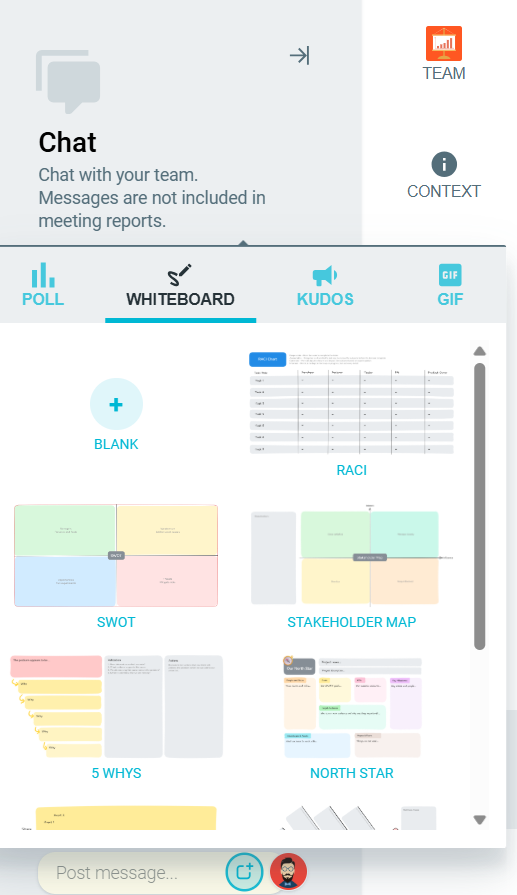
In the chat text field, click on the OPTIONS icon —> WHITEBOARD tab. Start from a blank canvas or choose from one of our pre-built framework templates.
Locking a Whiteboard
Whiteboard creators and facilitators can lock a whiteboard so that only they can edit it. Everyone else can still view, zoom, and pan.
A small toolbar appears in the top-right of the whiteboard for people who have lock permissions. From there, choose:
- Everyone can edit
- Only creator can edit
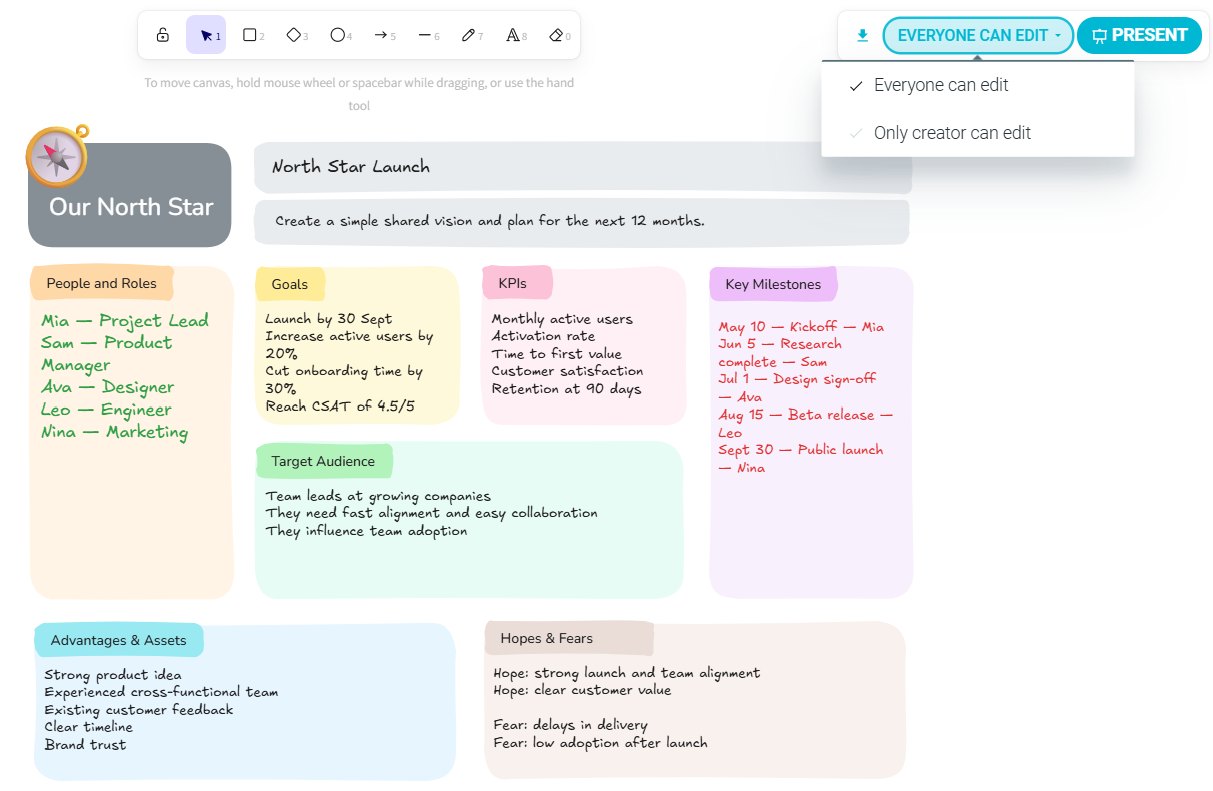
Viewers who are locked out will see a clear "Only creator can edit this whiteboard" banner.
Presenting a Whiteboard
Facilitators can present a whiteboard to bring the whole team to the same view. To start, click the PRESENT button inside the whiteboard.
When you do:
- The whiteboard opens automatically on every participant's screen.
- A "Facilitator is presenting" banner appears for all participants.
To release everyone, click STOP PRESENTING again or close the dialog.
Exporting and sharing Whiteboards
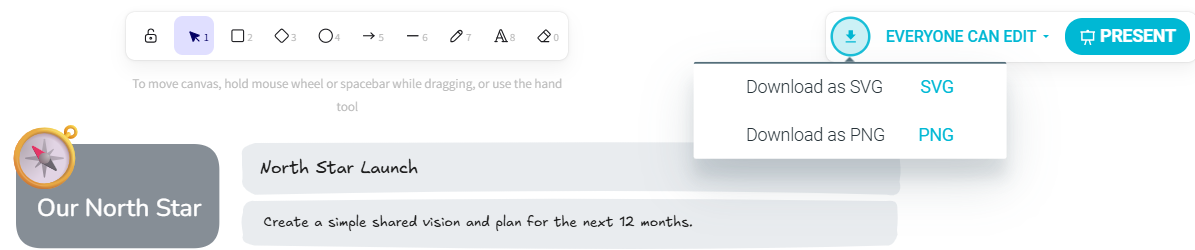
You can export any whiteboard as an SVG or PNG using the download menu inside the whiteboard dialog.
Whiteboard snapshots are included in your retrospective reports, so the visual context is preserved alongside your written feedback.
Whiteboards are also represented in the meeting wrap-up:
- The meeting summary includes a dedicated whiteboards section showing meeting-level boards.
- The meeting report (and PDF export) includes a full-width Whiteboards section at the end, grouped by source — meeting-level boards first.