
The maturity model process - CLOSE
Close your health check with a summary, key metrics and a list of outcomes. You can share the results easily, run a CHECK OUT QUESTION to collect feedback, and generate summaries for reporting and follow-up.
Use this step to:
- reflect on the outcomes
- run a CHECK OUT QUESTION
- download, share, or publish meeting summaries and the action plan
- generate AI-powered summaries
The CLOSE step is enabled by default and cannot be disabled in a maturity model meeting.
Check Out Questions
- Use a CHECK OUT QUESTION to gather team reflections at the end of the session. This helps measure how the team felt about the meeting or process. Responses to the question are anonymized, promoting a safe meeting environment for all participants.

Publishing, Downloading or Sharing Your Meeting Outcomes.
- If integrated, you can PUBLISH the meeting summary and action items through your preferred task management app. (e.g., Slack, Jira, Confluence, Notion).

- Click the DOWNLOAD button to export action items and meeting data. You can choose between PDF, MD, CSV or EXCEL formats.

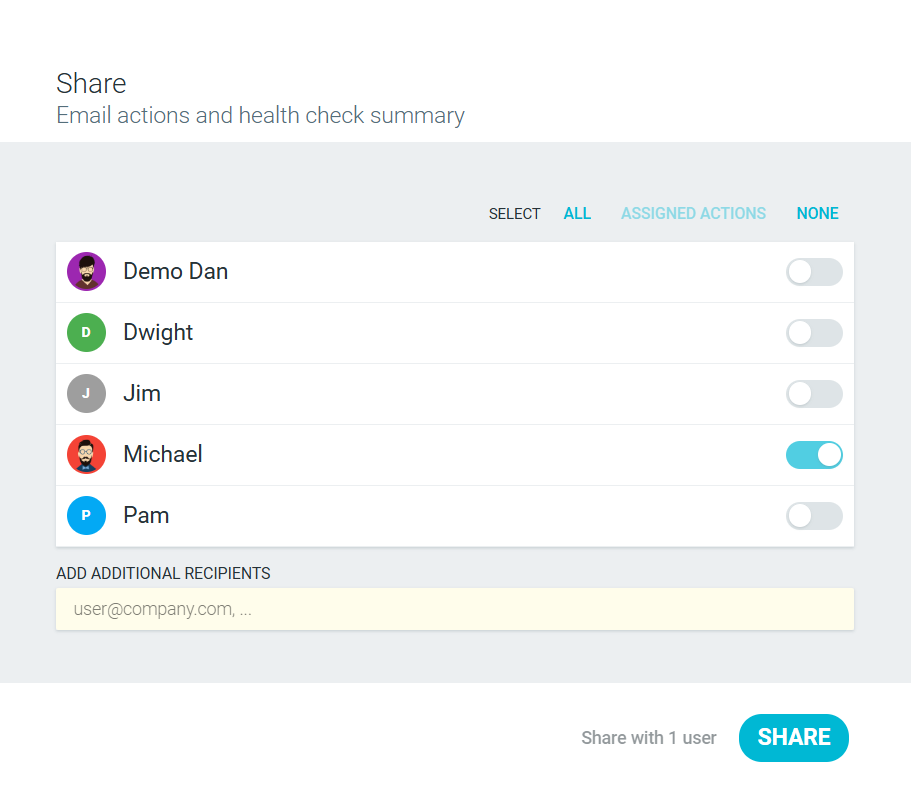
- SHARE the meeting summary with your team members by email.
Generating AI-powered summaries
Facilitators can generate a detailed AI-powered summary at the end of the maturity model health check. These summaries include:
- citations linked to specific comments, ratings, and actions.
- breakdowns by dimension.
- editable text for clarity and context.
This allows you to create a polished, structured report that reflects the outcomes of your session.

- As a facilitator, you can add notes or edit the summary.

- If you have used this template to run previous maturity model meetings, you will also see a historical trend of how your team is progressing overtime.

- You can now EXIT the health check, and it will be stored in your library for future reference.