
The maturity model process - ICEBREAKER
See the full list of Icebreaker Games.
An icebreaker is a great way to get your team talking in a fun, easy, and engaging way. It helps everyone feel comfortable and sets a positive tone for your meeting. This is an optional step.
When you enable the ICEBREAKER step, your team plays an icebreaker game together at the start of your meeting. Choose from a growing library of games, from quick quizzes and word games to drawing and pitching.
If you would prefer a single question for your team to discuss, you can switch to the CLASSIC ICEBREAKER at any time.
Choosing a game
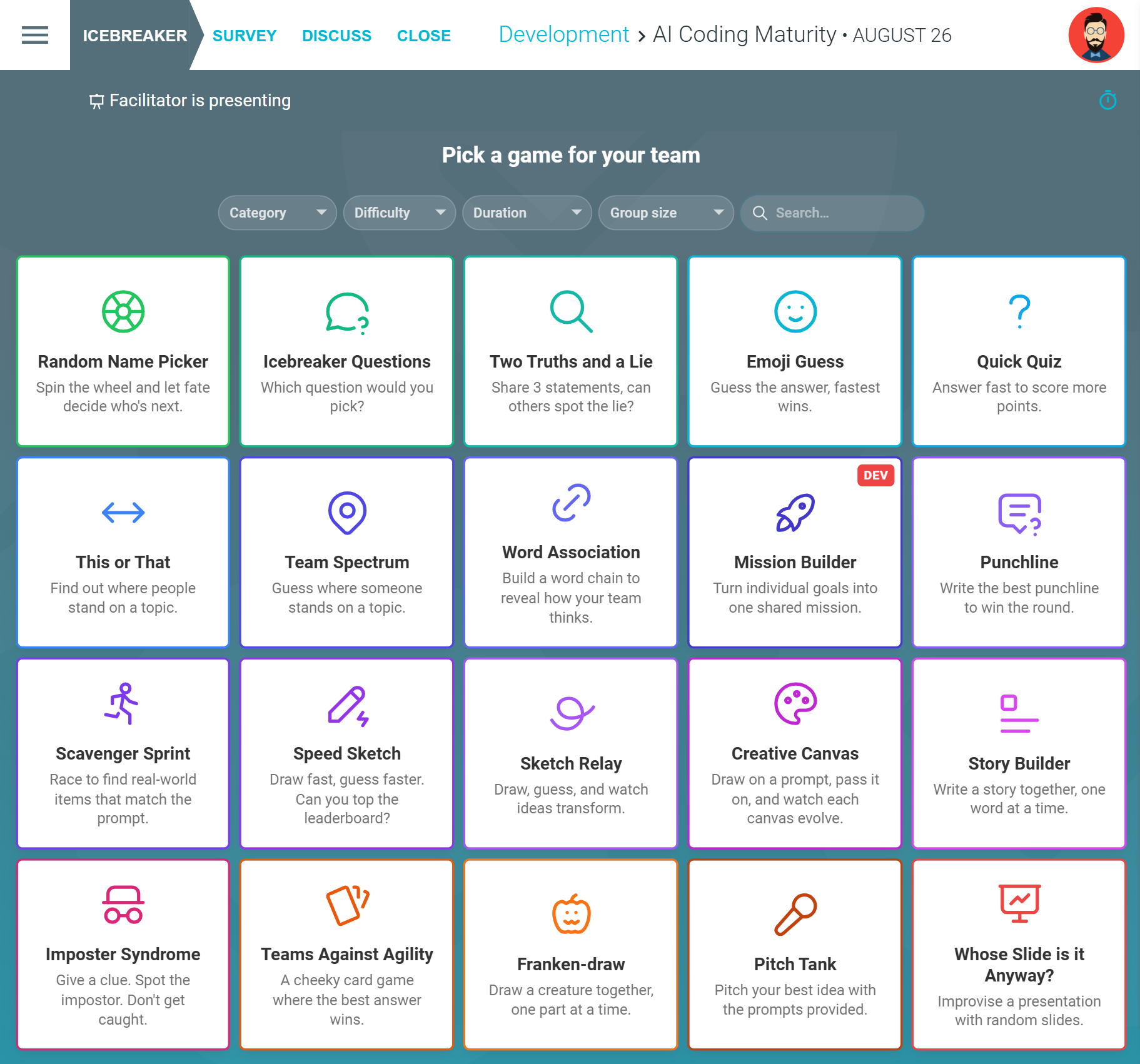
Each game tile shows how long the game runs, how many players it suits, and how demanding it is. Use the filters at the top of the picker to narrow the list:

- CATEGORY: the kind of activity, such as competition, creativity, participation or thinking. Choose for what your team enjoys most.
- DIFFICULTY: how much the game asks of participants, rather than how hard it is to facilitate. Lower difficulty is a safer choice for a new or mixed group, while higher difficulty suits a team that already knows each other well.
- DURATION: how long one full round runs. Add this to your meeting length rather than absorbing it, so the icebreaker does not run into the session it is warming up.
- GROUP SIZE: the range the game plays best at. Turn-based games slow down noticeably in a large group, while games where everyone acts at the same time scale comfortably.
- SEARCH: type the name of a game to go straight to it.
If you're not sure, start with something short, low difficulty, and matched to your group size, then run PRACTICE WITH ROBOTS once before your team joins in so you know what participants will see.
Run an icebreaker game
-
Navigate to the HEALTH CHECKS tab within a specific team.

-
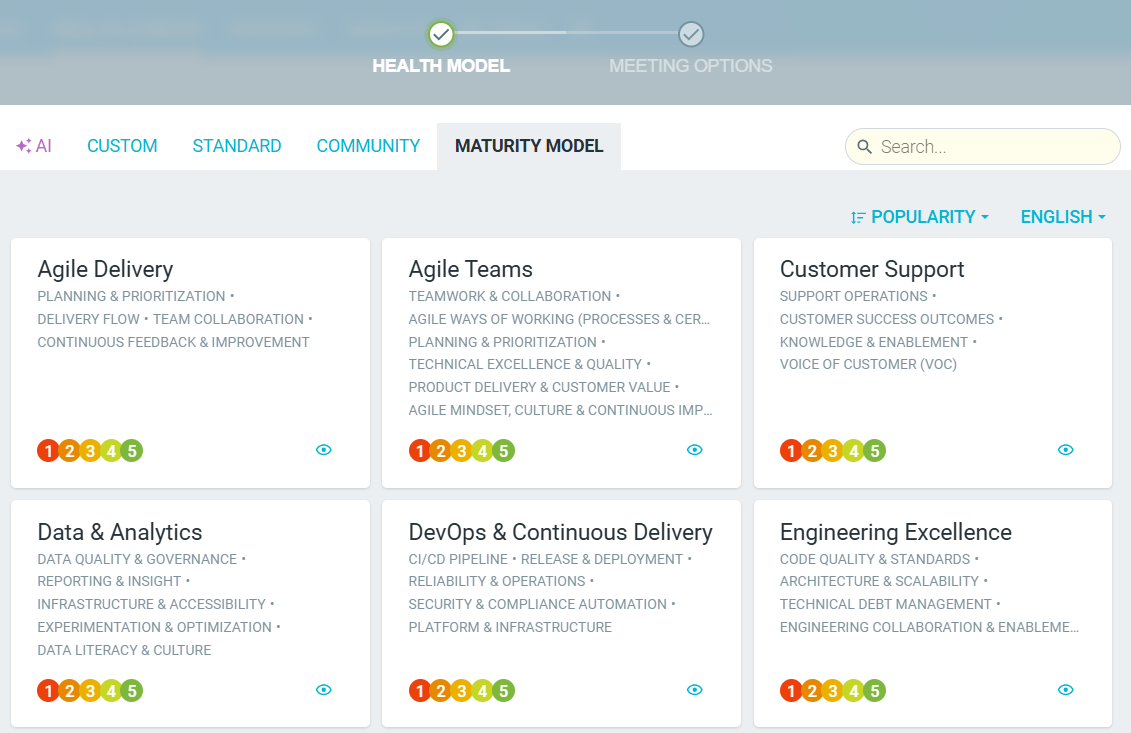
START A HEALTH CHECK and navigate to the MATURITY MODEL tab. Select from ready-to-use models, or create a CUSTOM one if you wish to start from scratch.
-
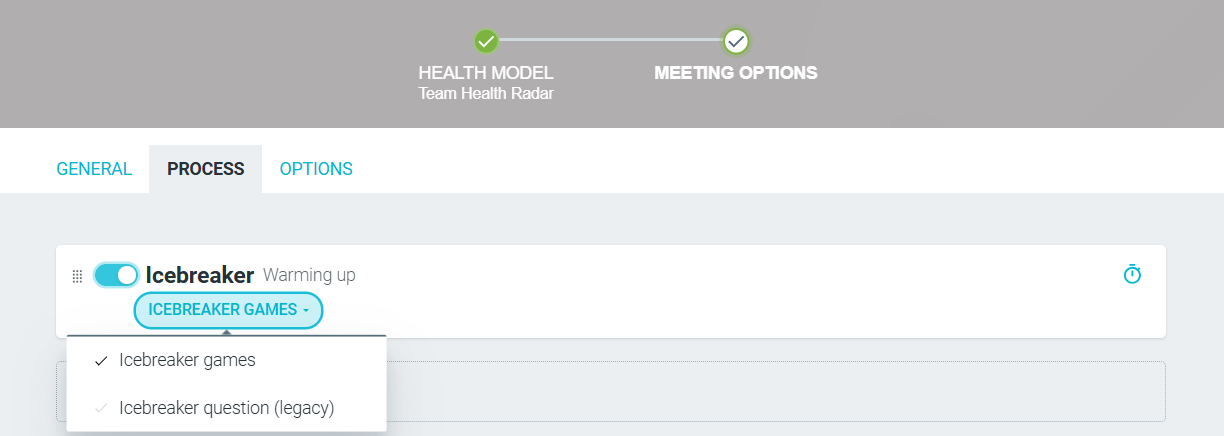
Click on the PROCESS tab and enable the ICEBREAKER step. You will have two options to choose from. We recommend ICEBREAKER GAMES, which is the default option.
-
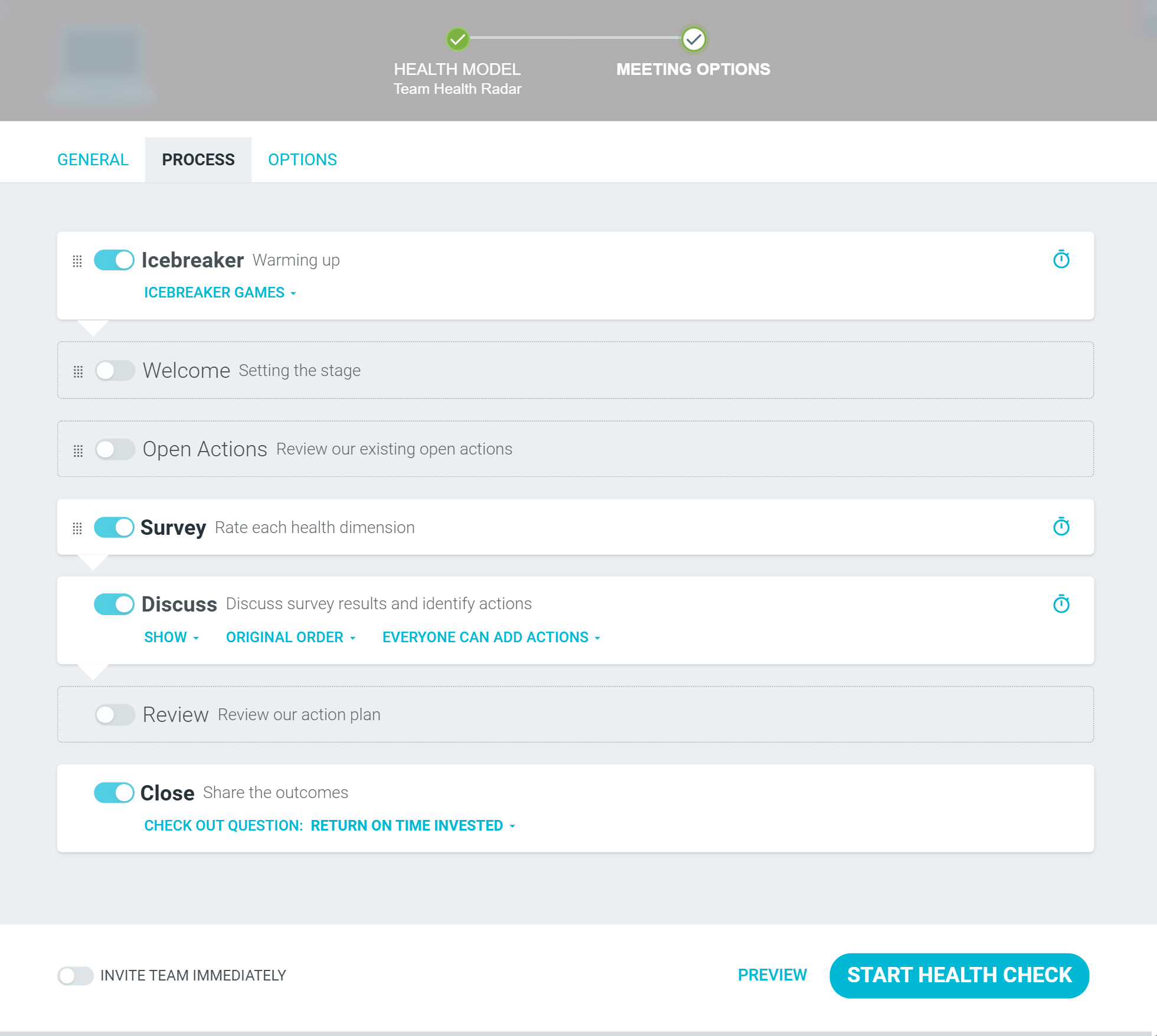
Customize the rest of your process, then START HEALTH CHECK.
-
The ICEBREAKER will appear as a step. Click on any game to see more details.
-
Selecting a game will present an overview page that tells you more about it. Most games have settings you can configure, such as pre-made or AI-generated topic categories.
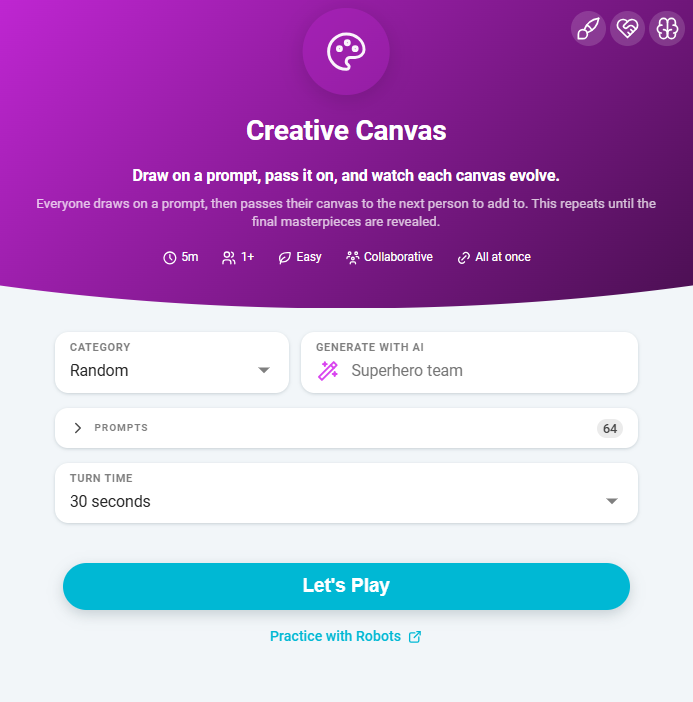
If you are unsure of how a game plays, click PRACTICE WITH ROBOTS to demo the process.
All games have a TIMER available to help keep the game on track, and some have LIVE MEETING FEEDBACK so participants can react and signal the pace as they play.
If you would like to return to the game selection menu, click anywhere outside of the game settings pane.
When ready, click LET'S PLAY.
Change the game
Whilst in a game, you can select a different one by clicking CHANGE GAME in the bottom right hand corner of the screen.
(Legacy) Switch to Classic icebreaker
If you would prefer the legacy version of the ICEBREAKER step, click SWITCH TO CLASSIC ICEBREAKER.

With CLASSIC ICEBREAKER, you can select a CATEGORY and LANGUAGE, write your own CUSTOM question, or click AI and provide a prompt to generate a set of questions tailored to your theme.
A NAME SPINNER is available to randomly pick participants, and you can ADD OR REMOVE NAMES as needed.
During the meeting
You can use the icebreaker at any point of the meeting.
If you run asynchronous maturity model meetings and want people to add their ratings and comments before the meeting, simply leave it in the SURVEY step and all participants will be able to do so beforehand.