
The maturity model process - DISCUSS
Discuss and identify actions
In the DISCUSS step, the results of the SURVEY are revealed to the team. If the same health check model has been used previously, trend data will also be displayed.
Team members can expand on each health dimension and add comments or suggested action items. Alternatively, the facilitator can guide the conversation by using the PRESENT feature to reveal and discuss each dimension one at a time.
Use this step to:
- reveal survey results and guide a structured team discussion
- identify and assign action items for each health dimension
- show dimension descriptions or generate summaries with AI
- highlight trends and dig deeper using radar chart statistics
- control the flow of conversation using sorting and presentation tools
This step helps teams turn insights into decisions and actions before moving toward review and close.

- You can drill down into each category to see the results for the individual dimensions. Trendlines will also be shown if there is previous data.

Enabling the Discuss Step
-
Navigate to your team's HEALTH CHECKS tab.

-
Click START HEALTH CHECK.
-
Choose your preferred model from a list or pre-defined categories or create a CUSTOM one.
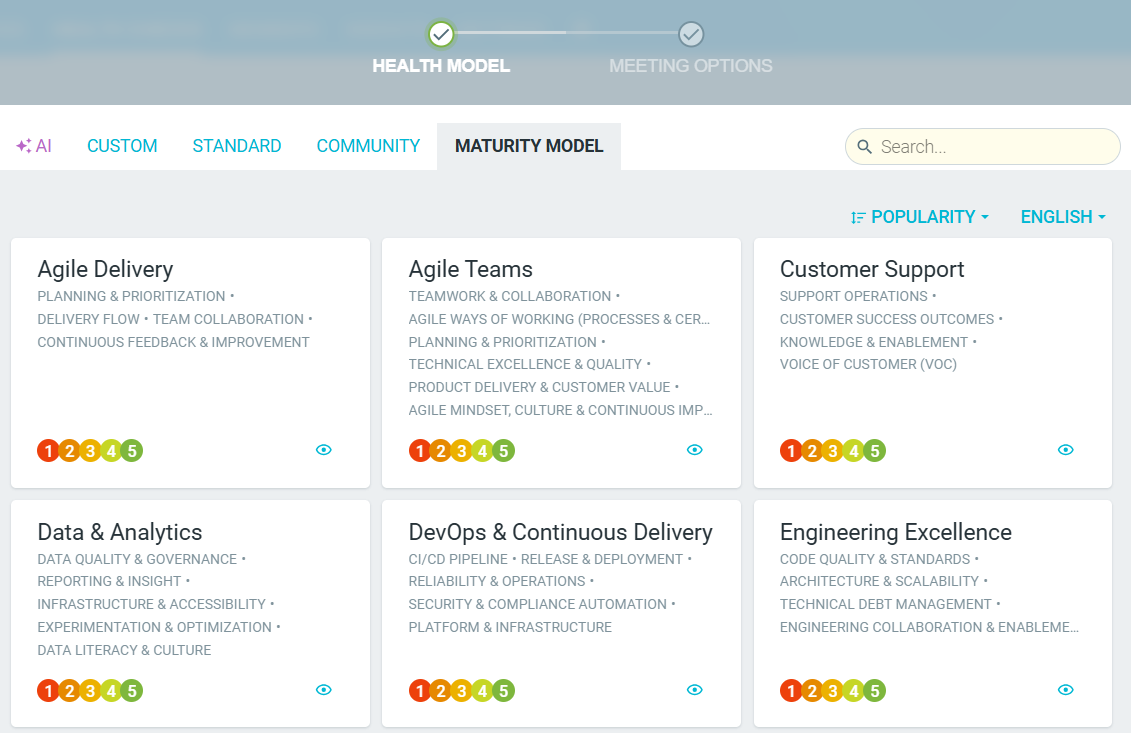
- Once you have selected your model, click on the PROCESS tab and enable DISCUSS.

- This step will now appear in your meeting.
Showing descriptions and summaries
-
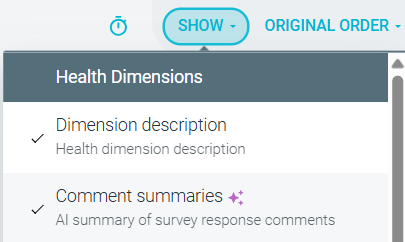
You can choose to show dimension descriptions, ensuring all meeting participants are on the same page as you review SURVEY results.

-
Get quick insights with automatic AI summarization of all survey comments for each dimension.

Showing statistics on your radar
- You can choose which statistical data points to display on the radar chart, giving you a customizable view of the team’s responses. For a complete description of each statistic, see Maturity model radar statistics.

Sorting discussion order
- By default, the health dimensions are shown in the ORIGINAL ORDER. As the facilitator, you can change the sort order depending on the focus of the discussion:

- SORT POSITIVE FIRST - highlight strengths and explore how they can be reinforced or shared
- SORT NEGATIVE FIRST - focus on areas needing improvement and possible actions to address them
- SORT MIXED FIRST - surface dimensions with diverse views to explore gaps in understanding or experience
Guiding the conversation
By default, all team members can browse and comment on dimensions freely. If you'd prefer to guide the discussion:
- Click START PRESENTING to enter presentation mode.
- Team members will only see one dimension at a time—the one being presented.
- Only facilitators can control which dimension is shown.
While in presentation mode, only meeting facilitators will be able to move from one dimension to the next.

Who can add actions
Actions help turn findings into processes that aim to make your team more organizationally mature. By default, all participants can add action items during the DISCUSS step. You can adjust permissions using the facilitation tools bar:
- FACILITATORS CAN ADD ACTIONS
- EVERYONE CAN ADD ACTIONS
- EVERYONE CAN PROPOSE ACTIONS
-
You can also use SUGGEST ACTIONS to generate AI-powered suggestions based on the survey responses and comments.
- These will be shown as proposed ideas which you and the team can discuss, before editing, rejecting, or approving them for your action list.
