
Allowed IP Ranges / Whitelisting
This feature provides additional security for your account by restricting access to your account to a set of allowed IP address ranges, such as your corporate network or VPN.
This is an Enterprise Plan only feature. Only the Account Owner can change this setting; Account Administrators cannot.
Getting Started
As an Account Owner, you can configure allowed IP ranges for your account:
-
From your account HOME page, navigate to the SETTINGS —> SECURITY tab.
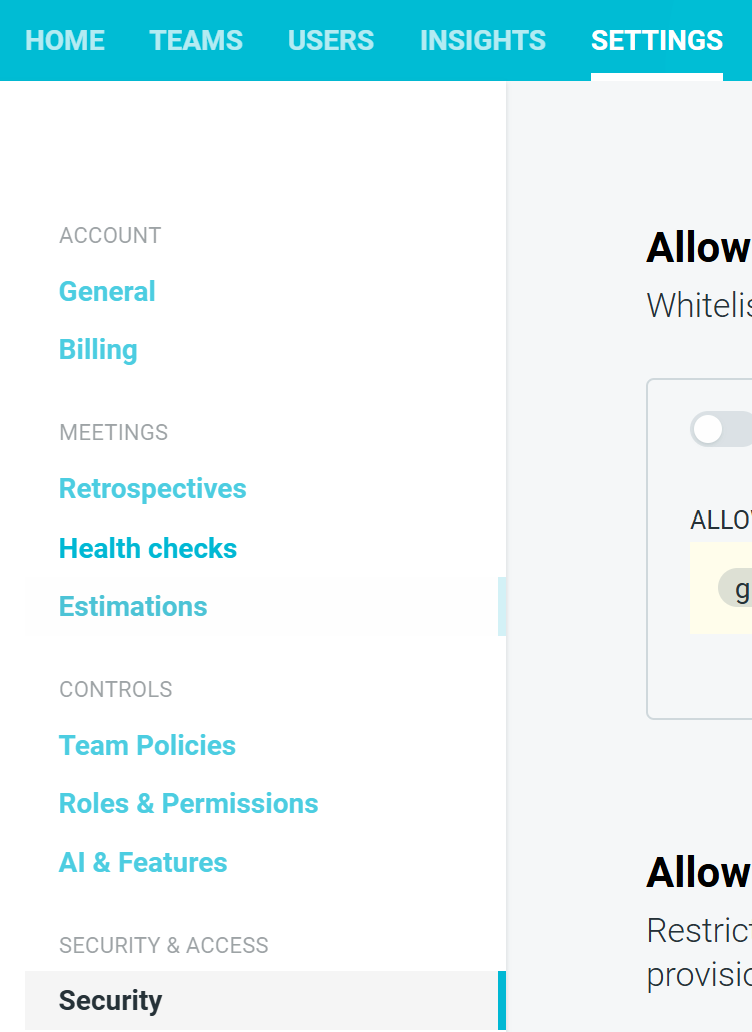
- In the Allowed IP ranges section, enter your corporate network IP addresses as either:
- Individual IP addresses – for example:
X.X.X.X - CIDR ranges – for example:
X.X.X.X/X - By default, the list will include
0.0.0.0/0, which allows access from all IP addresses. You can narrow this down to specific ranges to restrict access.
- Individual IP addresses – for example:

- Click SAVE CHANGES to apply your updated list of allowed IP ranges.
- Toggle on ENFORCE ALLOWED IP RANGES.
Once enabled, users attempting to access your TeamRetro account from outside the allowed IP ranges will be blocked and shown the following.

Notes
- You can mix individual IPs and CIDR ranges in the same list to cover different offices, data centers, or VPN egress points.
- To prevent you from accidentally locking yourself out, you will not be able to remove an IP range from the list unless another IP range already covers your current IP address.
- The default
0.0.0.0/0entry is a “allow from anywhere” rule. For a locked-down configuration, replace this with one or more specific corporate or VPN IP ranges. - This setting applies at the account level, so it affects access for all users attempting to sign in to your TeamRetro account.
- You may wish to coordinate changes with your network or security team to ensure all required office locations and VPN endpoints are included before enforcement is enabled.