
The standup process - WELCOME
The WELCOME step is off by default in a standup. Even when it is on, people only see it when someone facilitates the standup. Without a facilitator, a standup opens on the STANDUP step.
The WELCOME step helps you share the focus of the standup before your team starts. You can also ask a check-in question to see how the team is feeling.
In the WELCOME step, you can:
- preview the questions of the standup
- share context with your team, such as a goal or a reminder
- add an image to go with your context
- set a TIMER
- add a CHECK-IN QUESTION to see how the team is feeling
Enabling the Welcome step
To add the WELCOME step to a new standup series:
-
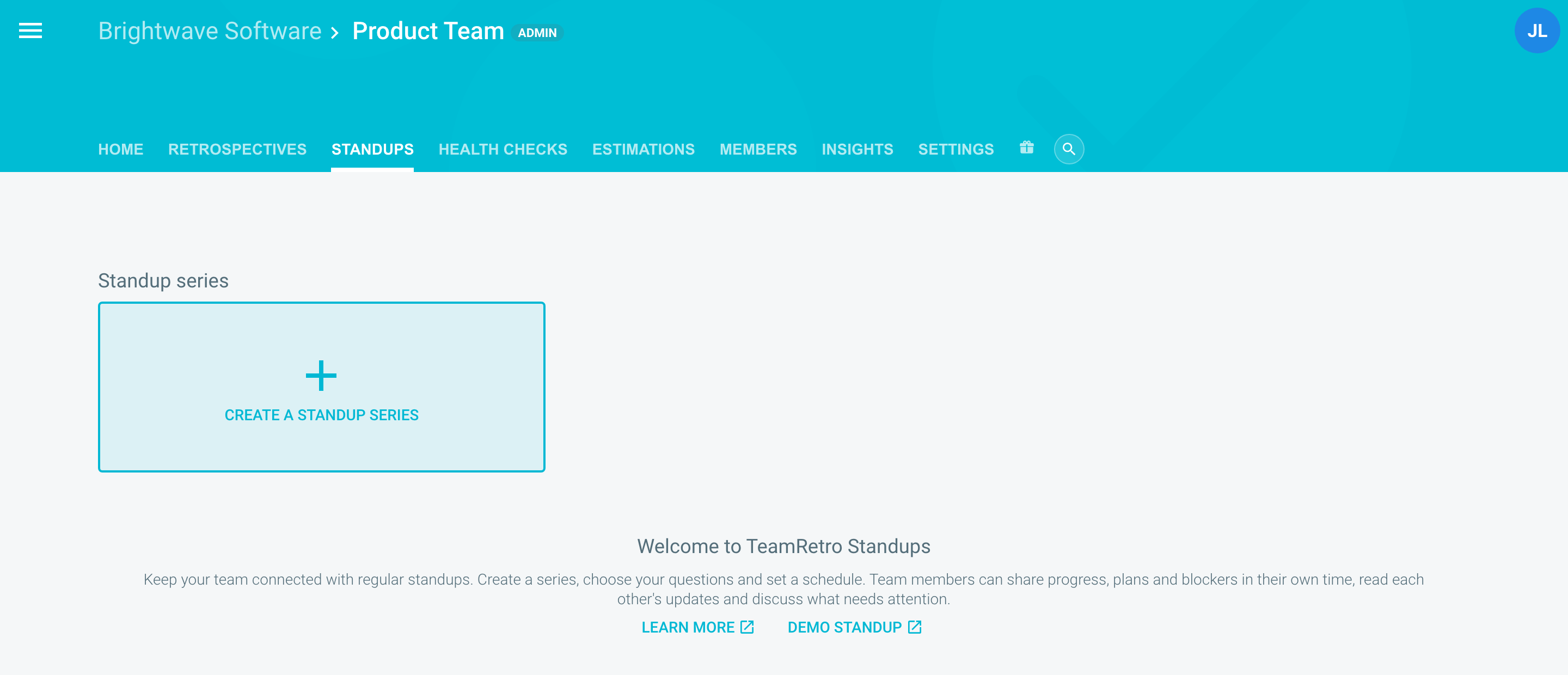
Navigate to your team's STANDUPS tab.
-
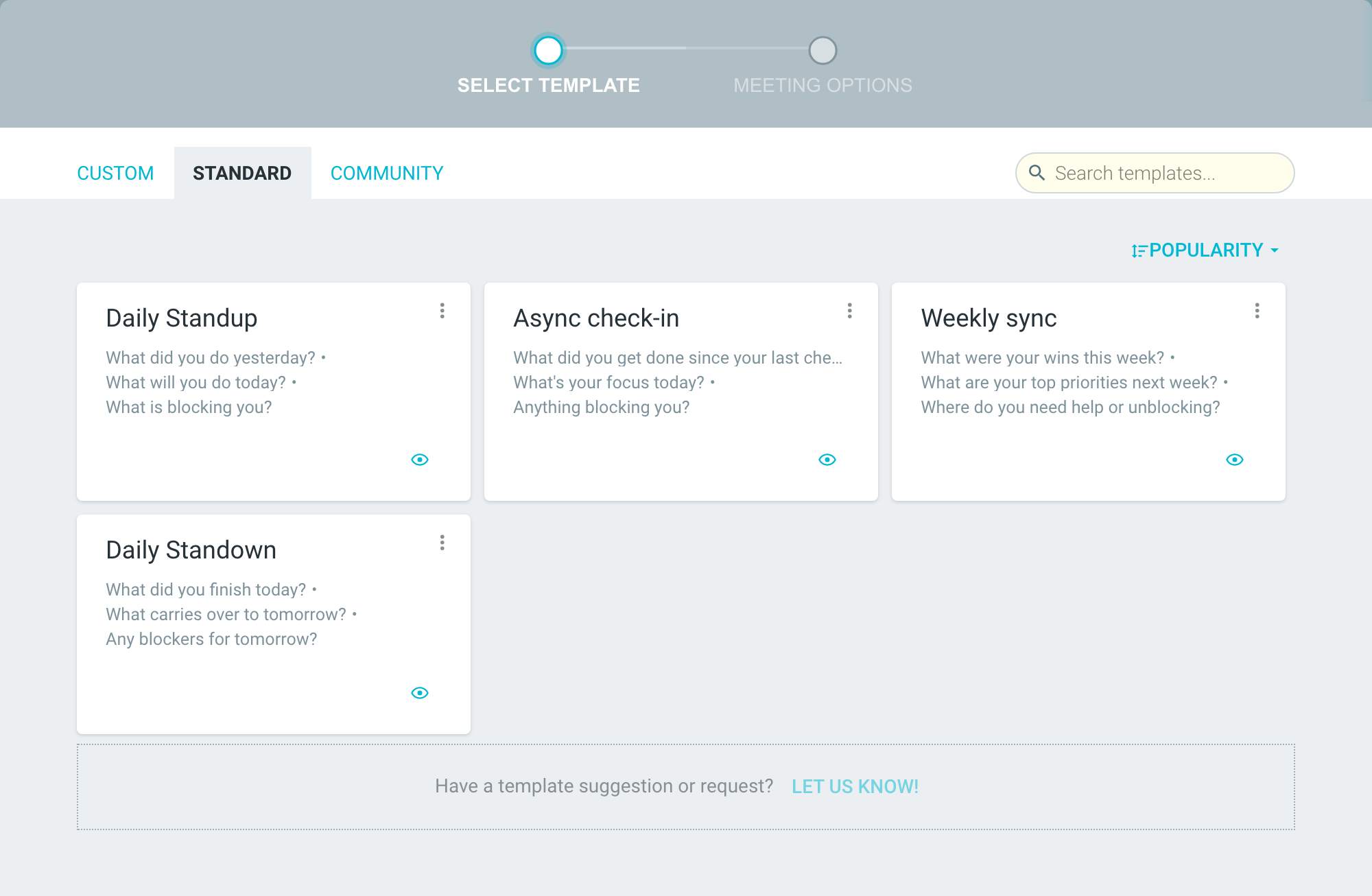
Click CREATE A STANDUP SERIES and choose a template.
-
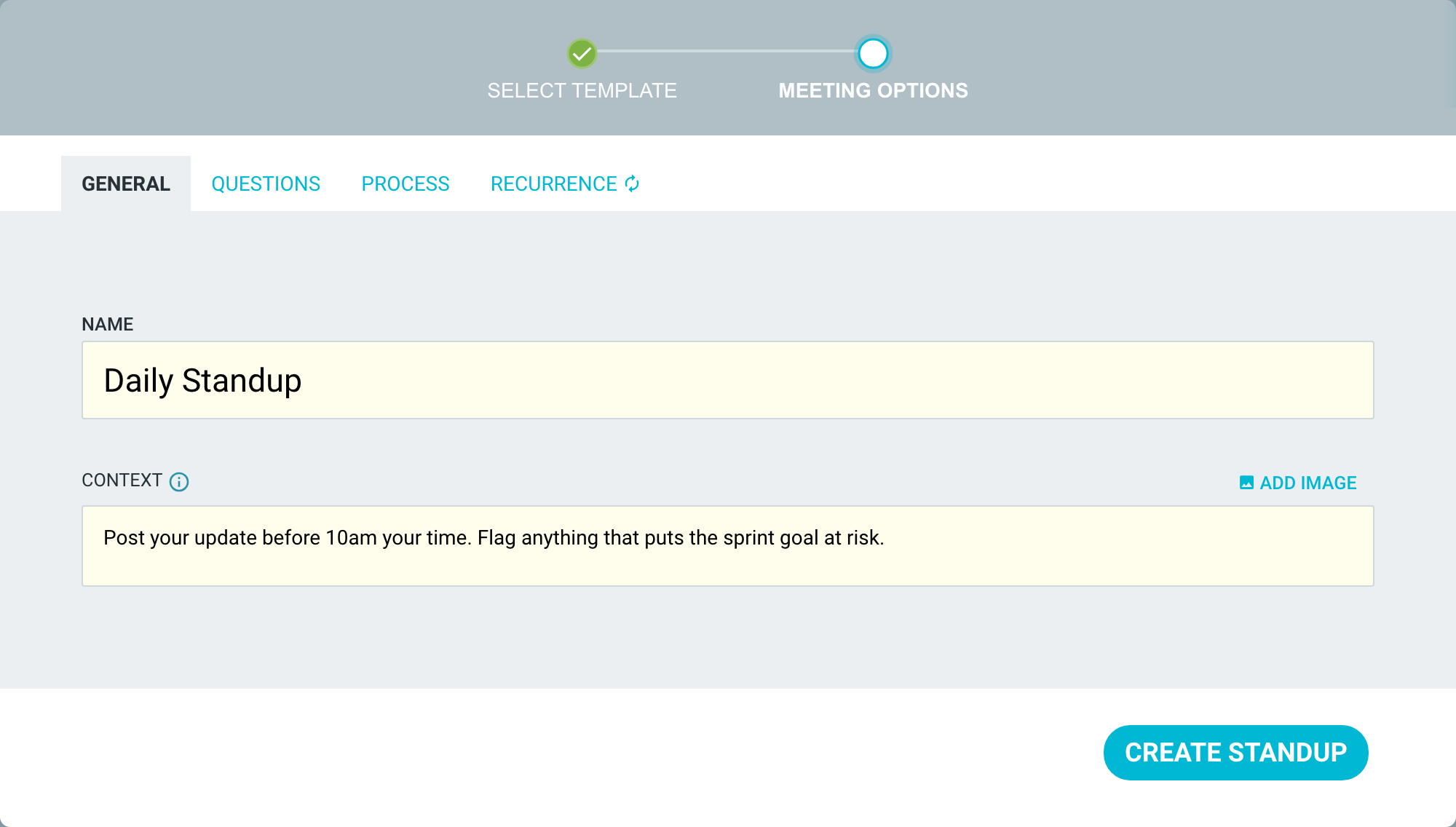
On the GENERAL tab, add your instructions and information to the CONTEXT field. You can also ADD IMAGE.
-
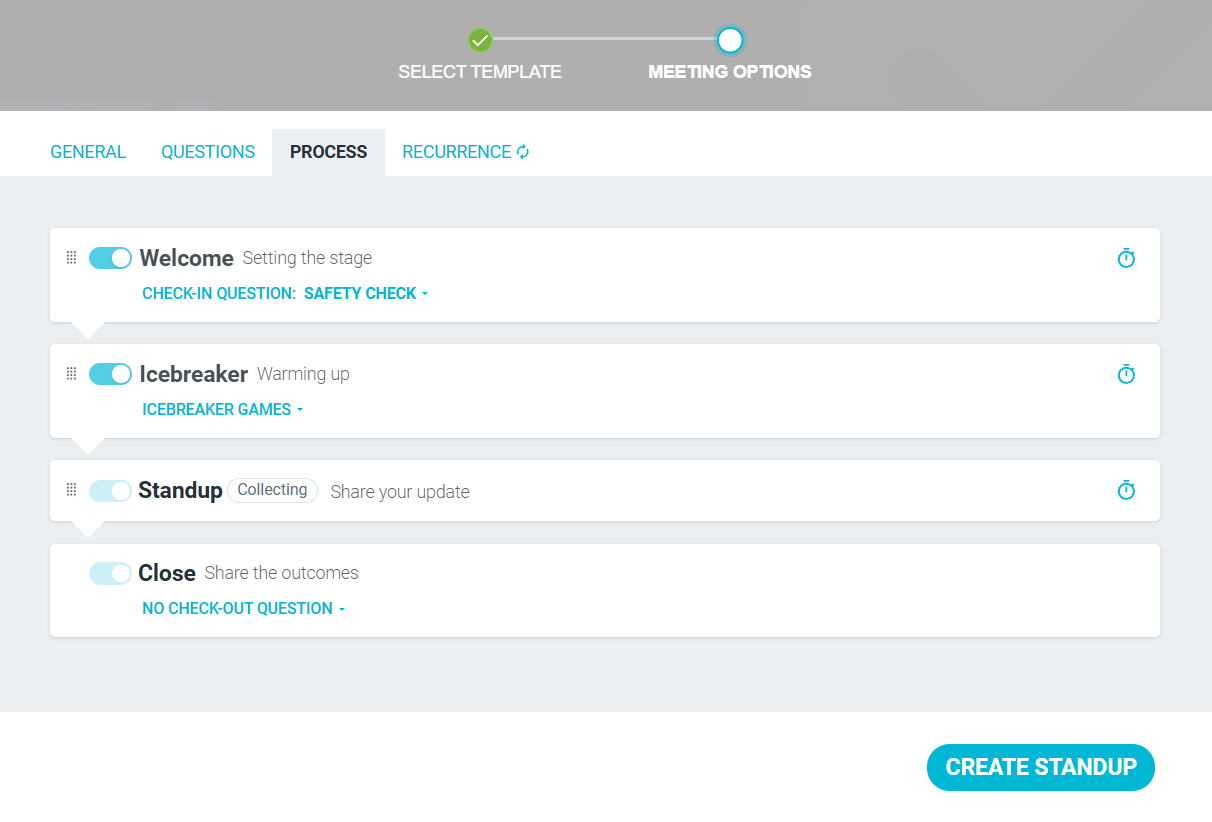
Click on PROCESS and turn on the WELCOME step.
-
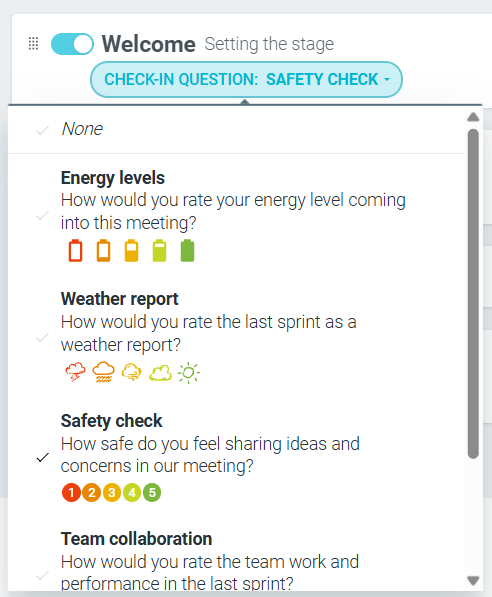
OPTIONAL: If you are a Team Admin, choose a CHECK-IN QUESTION from the list. You can also set a timer.
-
Click CREATE STANDUP.

To add the step to an existing series, a Team Admin opens the STANDUPS tab, selects the series and clicks the SETTINGS icon (gear). Turn on the WELCOME step on the PROCESS tab, then click SAVE CHANGES. Future standups in the series include the step. Learn more
When you create a series, only a Team Admin can choose the check-in question. Inside a standup, a Team Admin or the facilitator can change it.
During the standup
After you click START FACILITATING, every step shows at the top of the page. Move everyone to the WELCOME step to begin.
