
Search across teams and meetings
TeamRetro's search features help you find information your teams have captured across all previous meetings.
TeamRetro provides two ways to search, both at the organization and team-level:
- Quick search from the top navigation bar for a high-level view of matching content.
- Filtered search from the INSIGHTS menu when you want to narrow your results by team, person or date.
Use quick search
Quick search is useful when you want to find relevant information without applying additional filters.
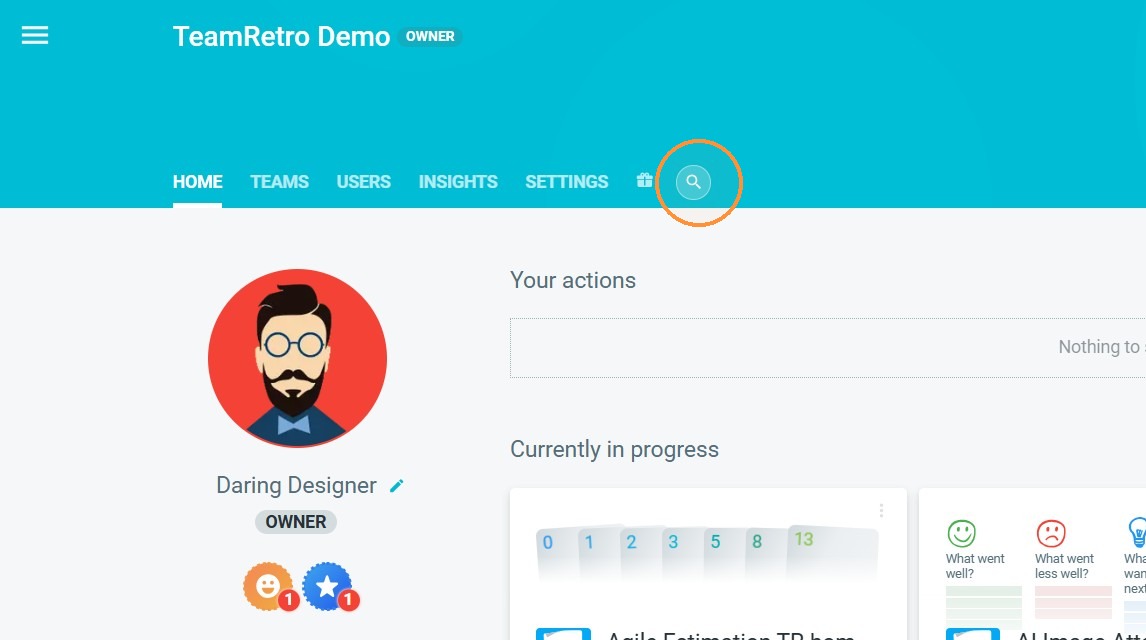
1. From your homepage, click the SEARCH icon in the top navigation bar.
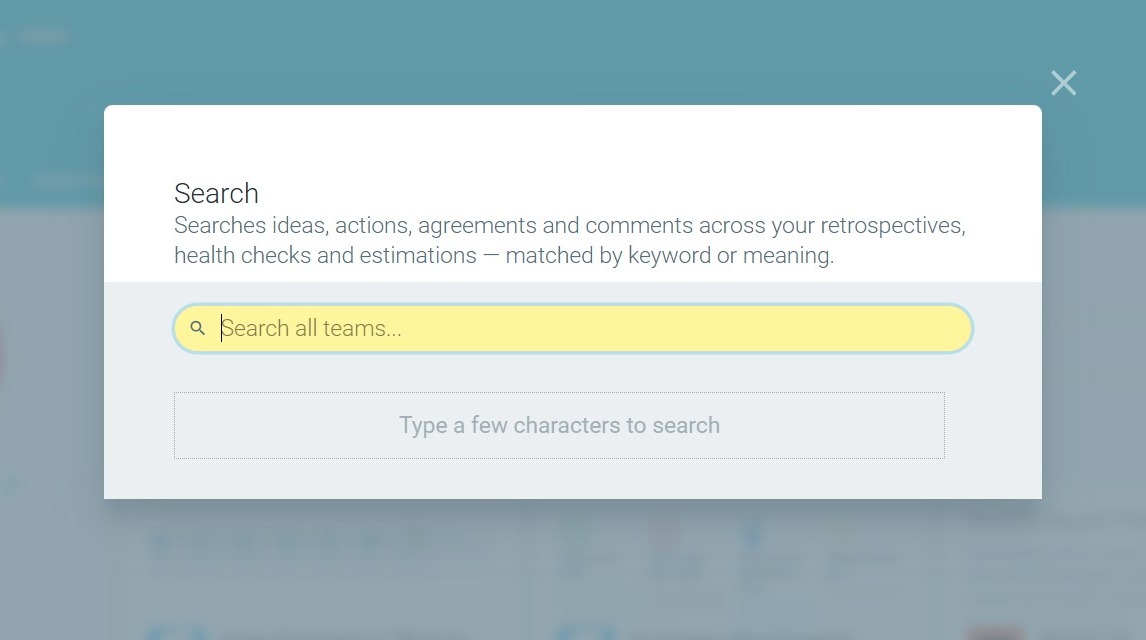
2. Enter a question, topic or keyword into the search field.
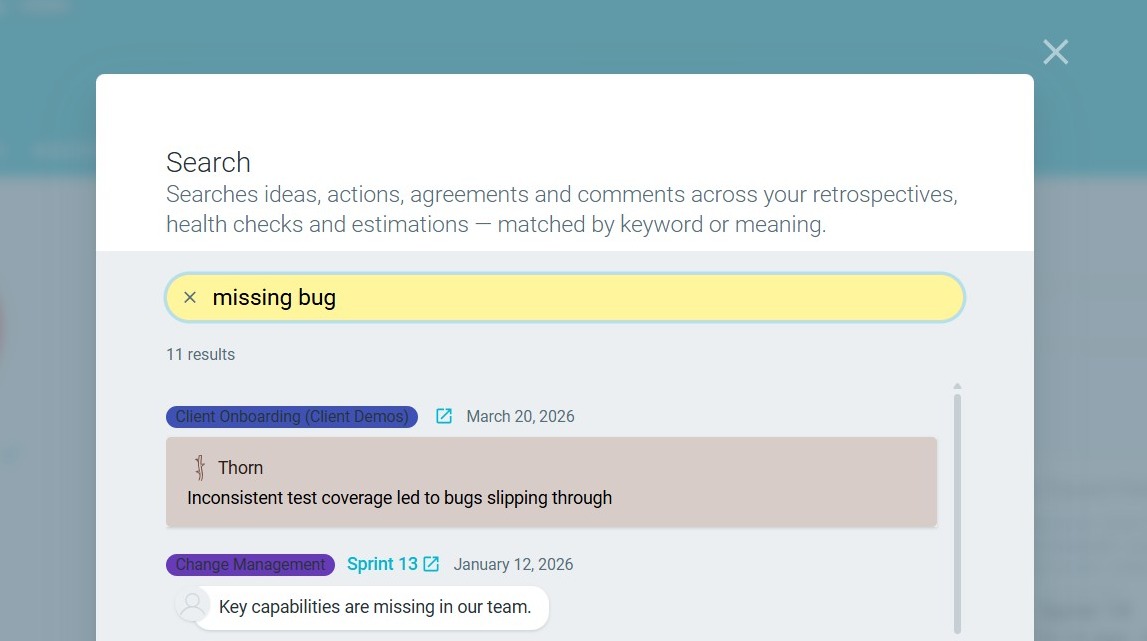
3. Review the matching results.
Use filtered search
Use filtered search, available through the INSIGHTS menu, when you want to conduct a deeper search or focus on a particular team, person or period.
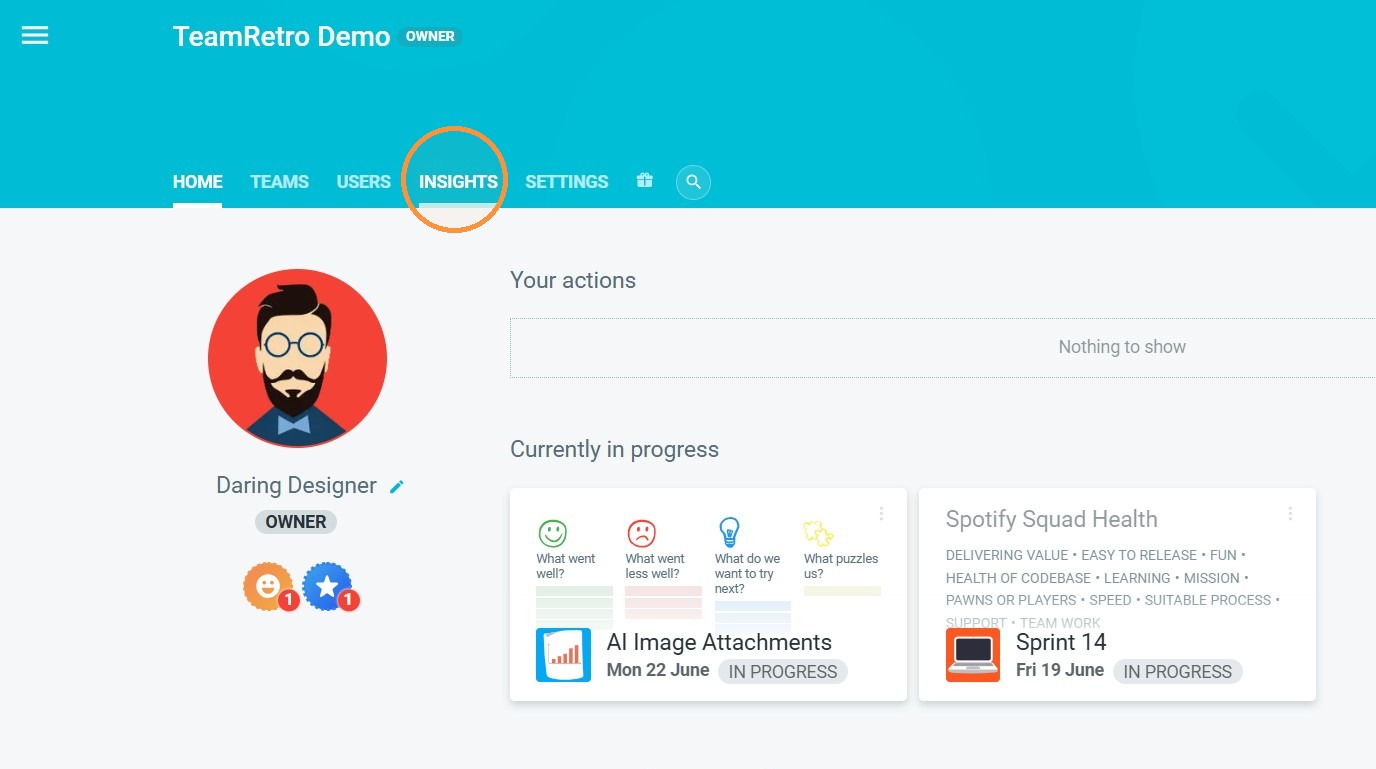
1. From your homepage, click INSIGHTS in the top navigation bar.
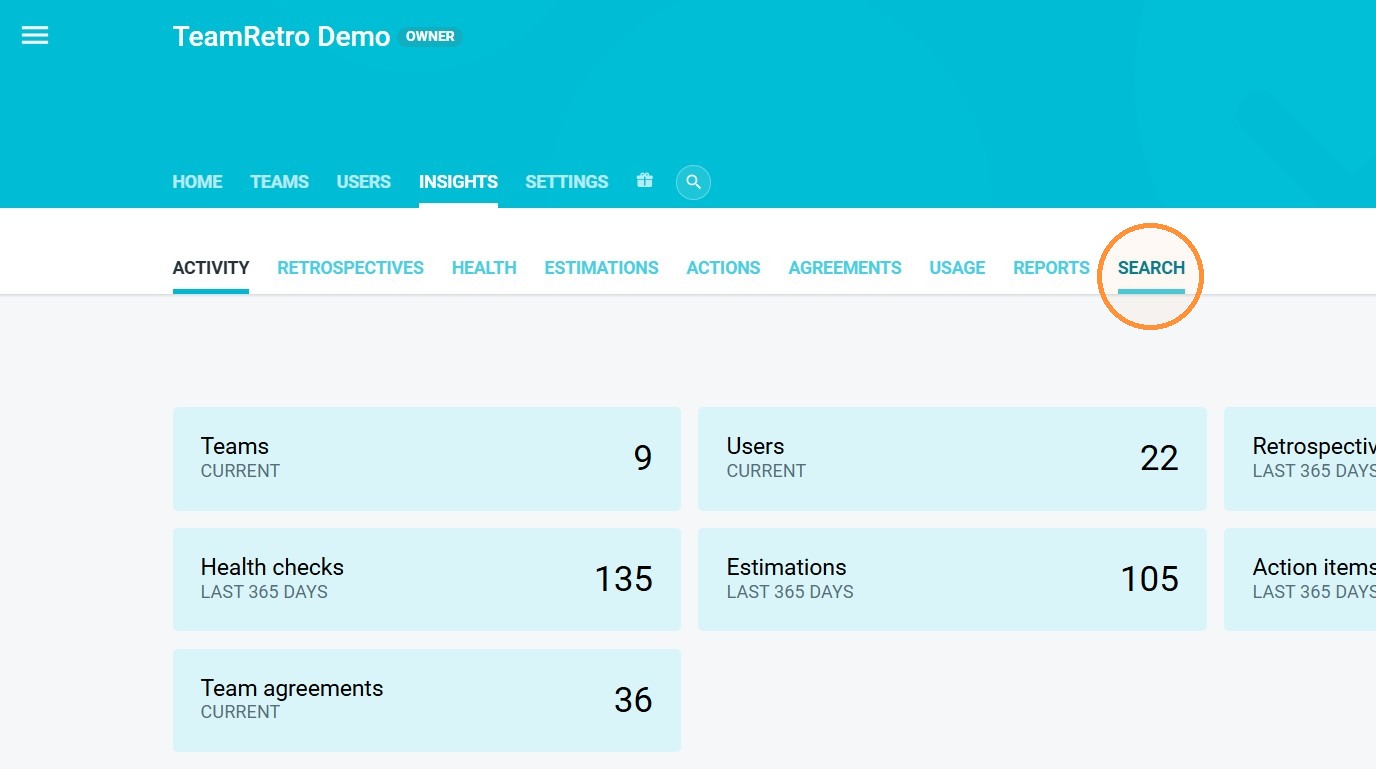
2. Click SEARCH.
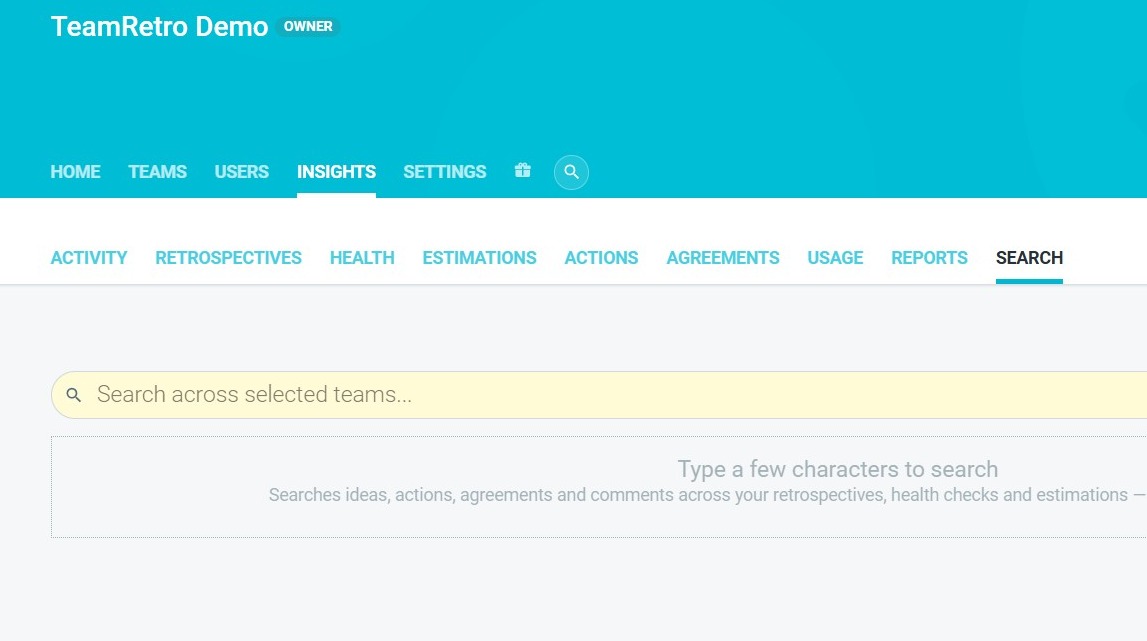
3. Enter a question, topic or keyword into the search field.
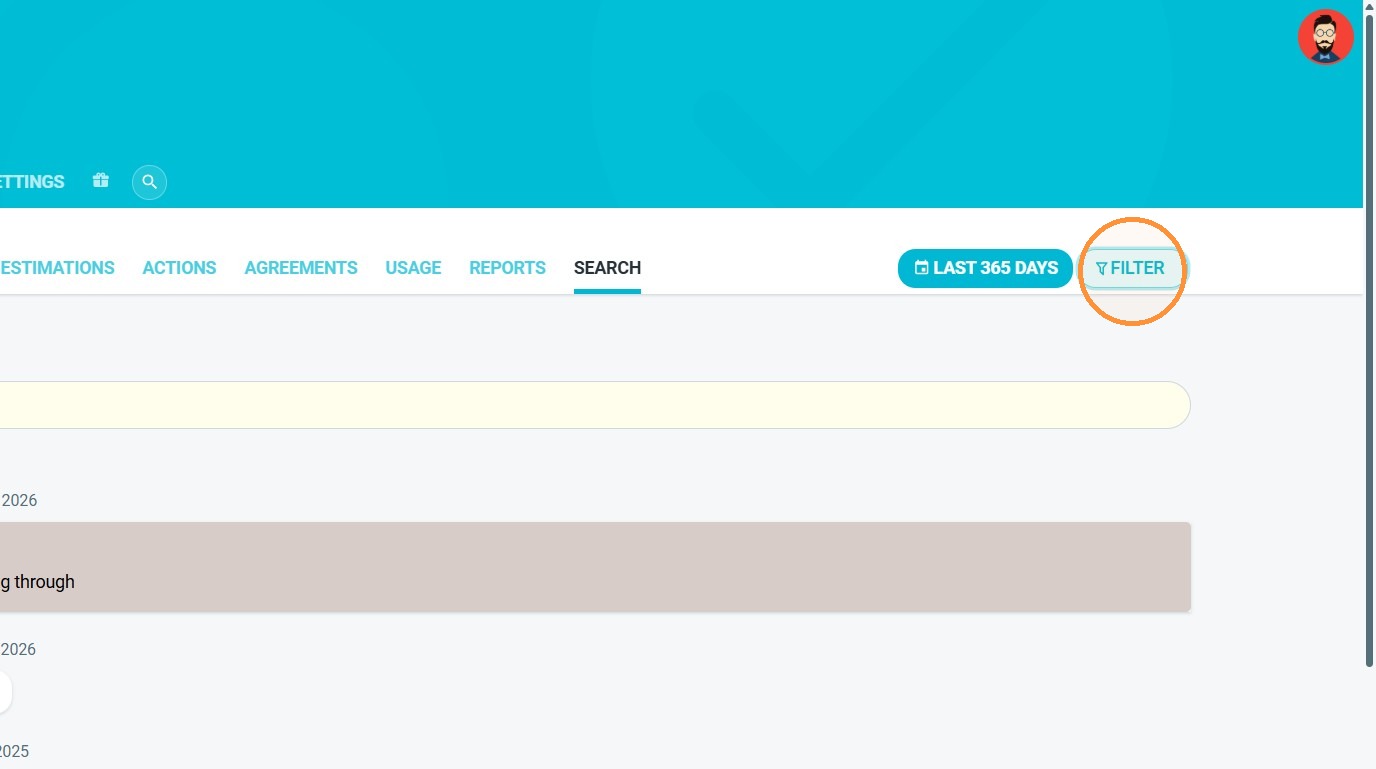
4. As part of your search, apply any relevant filters by selecting the FILTER option.
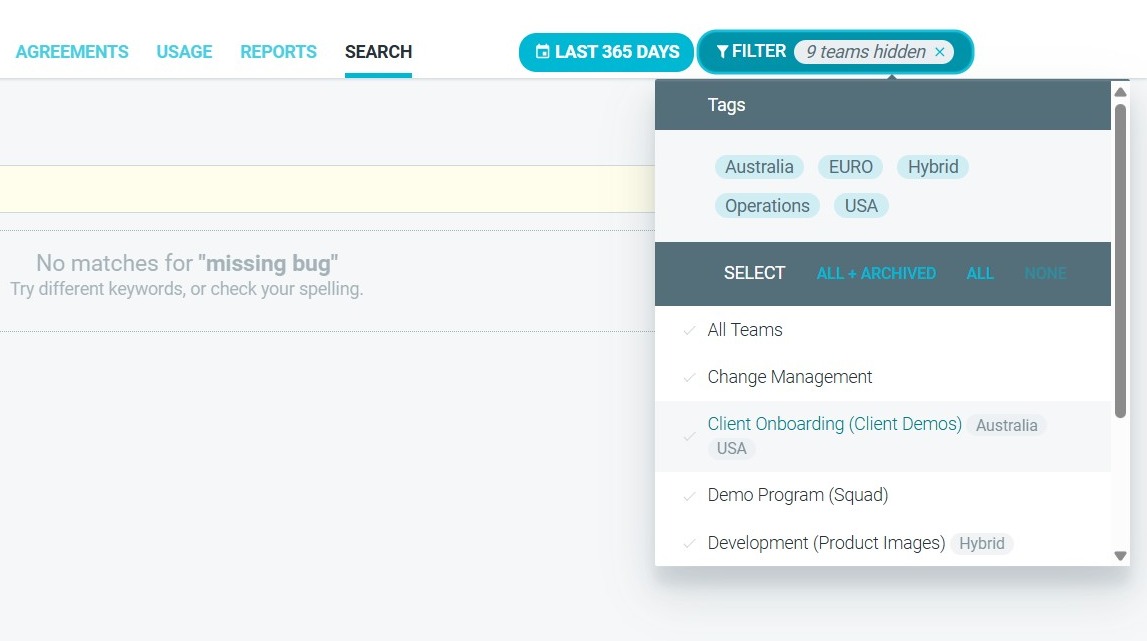
5. You can narrow down search results by selecting which Tags and Teams to focus on, or by changing the Date range.
6. When ready, Review the matching results.
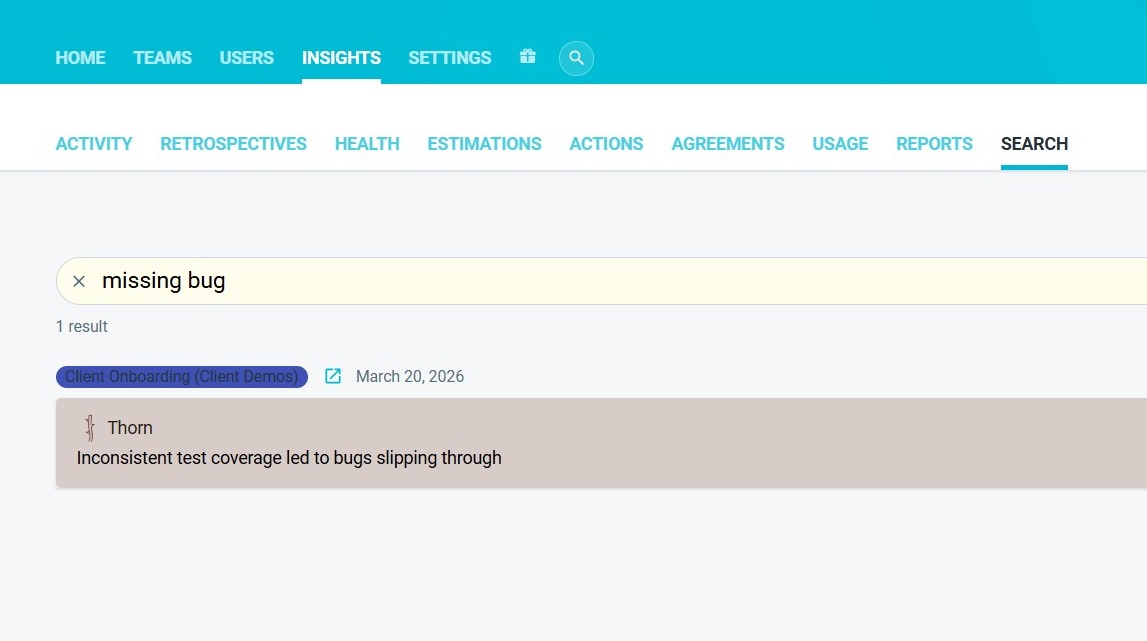
Select a result to view its meeting context and related information.
What you can search for
You can use natural-language searches to find information related to a particular topic or question.
For example, you could search:
“What have we said about onboarding?”
TeamRetro will return relevant content captured across your teams and meetings, including:
- Ideas
- Comments
- Team agreements
- Action items
This makes it easier to bring together conversations that may have taken place across different teams or over several months.
Tips for better search results
- Search for a specific topic, such as “release process” or “meeting workload”.
- Ask a question when you want to explore a broader theme.
- Use team filters to focus on a particular group.
- Set a date range when reviewing a particular project, quarter or period.
- Try a related keyword when a search returns too many or too few results.