
Creating a custom maturity model template
You can create custom maturity models for your team or your entire account. These will be available as a template from the health model library under the CUSTOM tab.
- Team-Level Template - Visible only to the specific team where it’s created.
- Account-Level Template - Available to all teams across the organization. You can also set this as the default maturity model for all teams.
To create custom maturity models, you must be a Team Admin or an Account Owner.
Note: Once a maturity model has been used, removing dimensions may result in the loss of past ratings. Adding new dimensions will create gaps in your rating history.
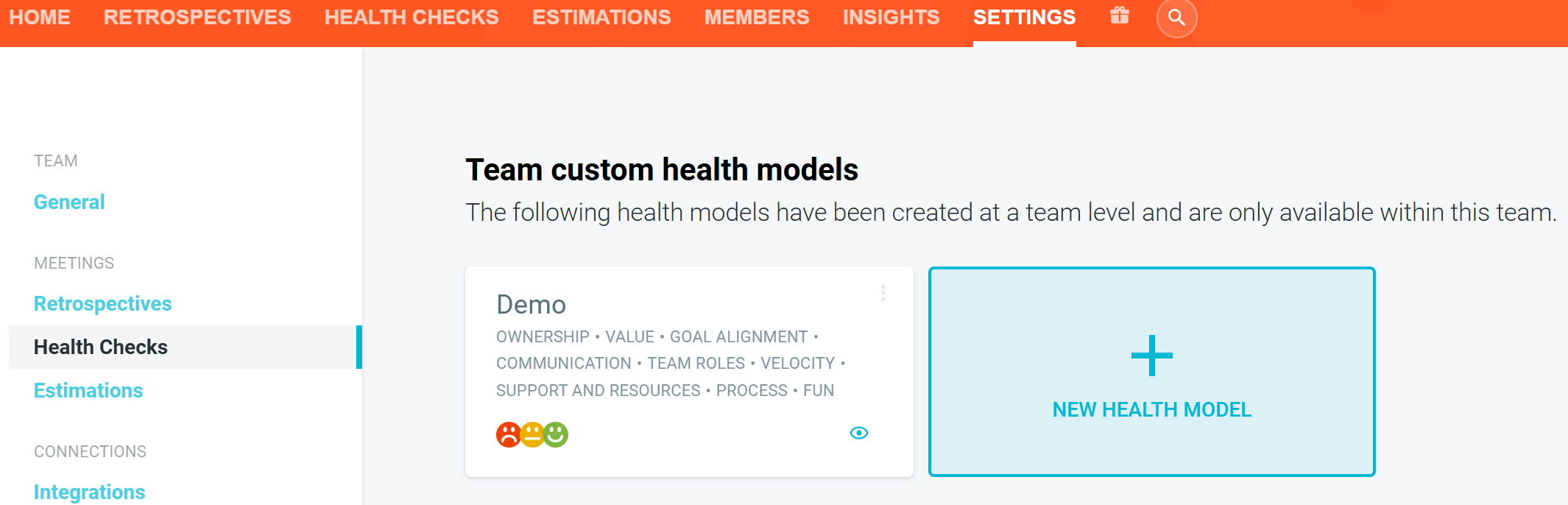
To create a custom team-level maturity model
- Navigate to the TEAM HOME page.
- Go to SETTINGS, HEALTH CHECKS then NEW HEALTH MODEL.
-
Go to customizing your template.
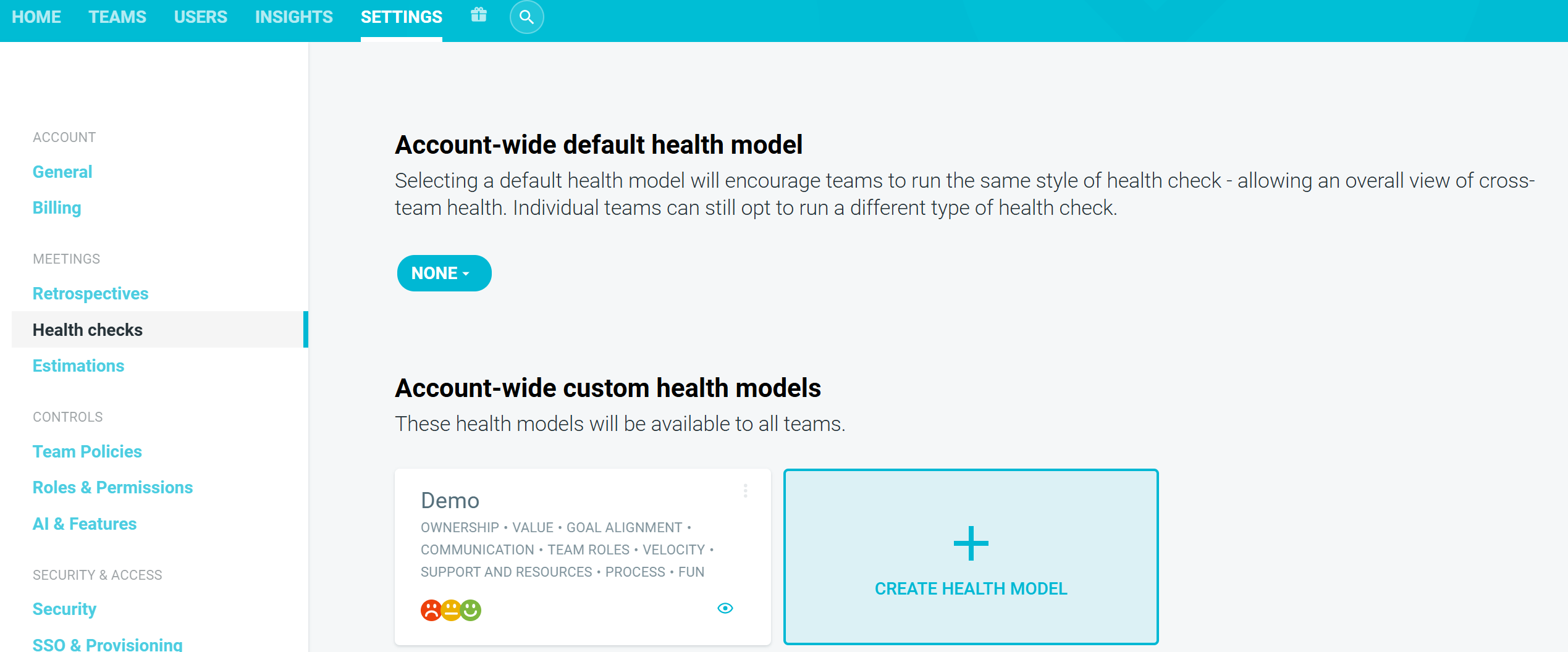
To create an organization-wide custom maturity model
- Navigate to your account HOME page. (Make sure this is at the organization level, not the team home page.)
- Go to SETTINGS, click HEALTH CHECKS, then CREATE HEALTH MODEL.
-
Go to Customizing your template.
Customizing your template
-
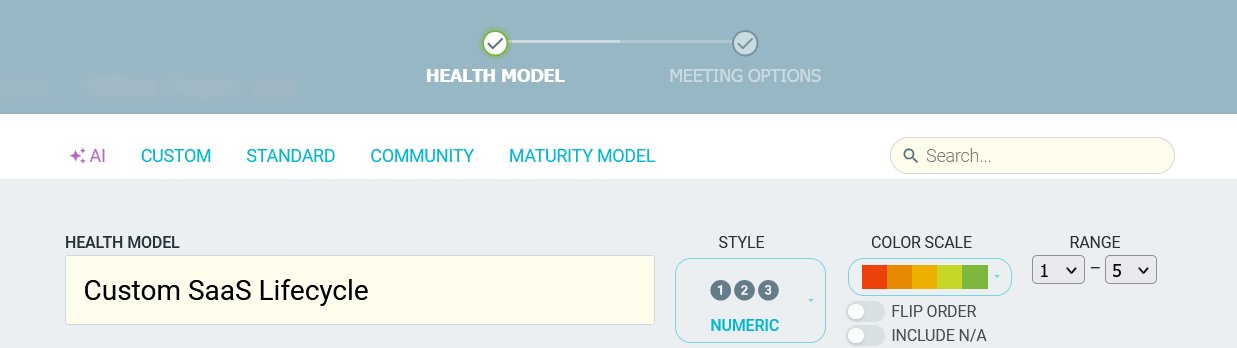
Enter your Maturity Model name.
-
Select your STYLE.

- NUMERIC - A number-based scale where responses can range from a set minimum to maximum. Negative values are supported.

-
HAPPINESS - A visual traffic light scale using emoticons to indicate negative, neutral, or positive sentiment.

-
MATRIX - A survey-style model that allows you to add a descriptor for each numerical response.

-
LIKERT - A model using the 5-point Likert Model (i.e. Strongly Agree —> Strongly Disagree).

-
You can also choose a COLOR SCALE depending on your preferred design style.

- Add your maturity model's categories. TeamRetro refers to these as DIMENSIONS.

- For each DIMENSION, add a title and description

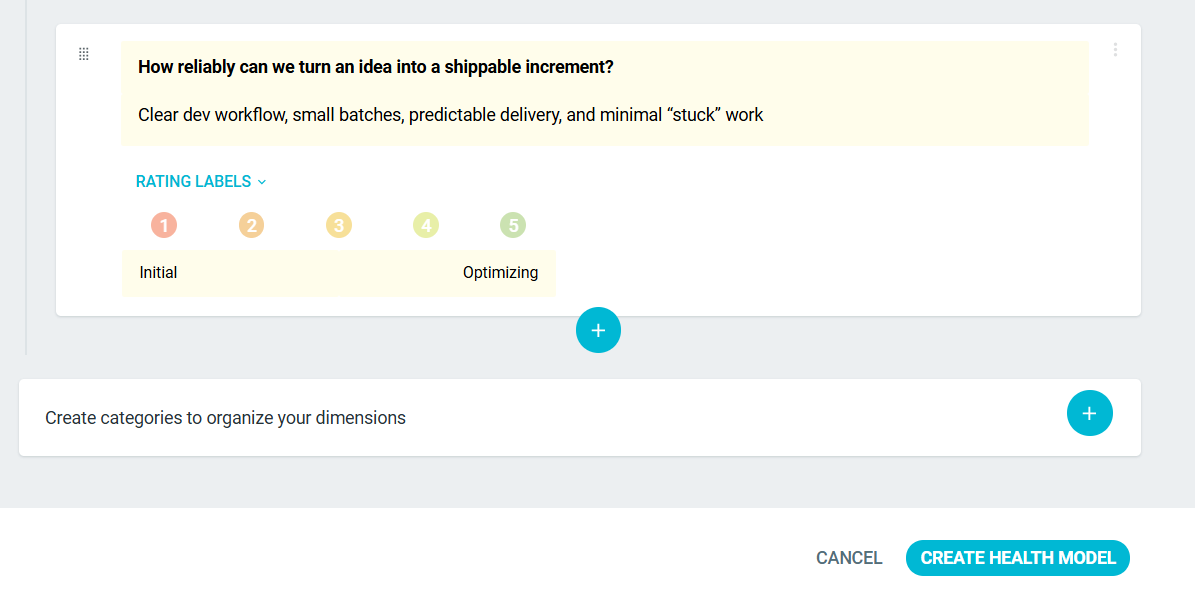
- For each dimension/category, you can add questions, with descriptions, for your team to respond to. Use the RATING LABELS feature to clarify what each rating represents.

- You can ADD/DELETE dimensions or use the DRAG HANDLE to reorder them.

-
Once you have added all of your categories and questions and are happy with the template, click CREATE HEALTH MODEL.
Managing or updating your custom maturity model
Note: Once a maturity model has been used, removing dimensions may result in the loss of past ratings. Adding new dimensions will create gaps in your rating history.
-
Go to your team’s or account's HOME page —> SETTINGS —>HEALTH CHECKS.
-
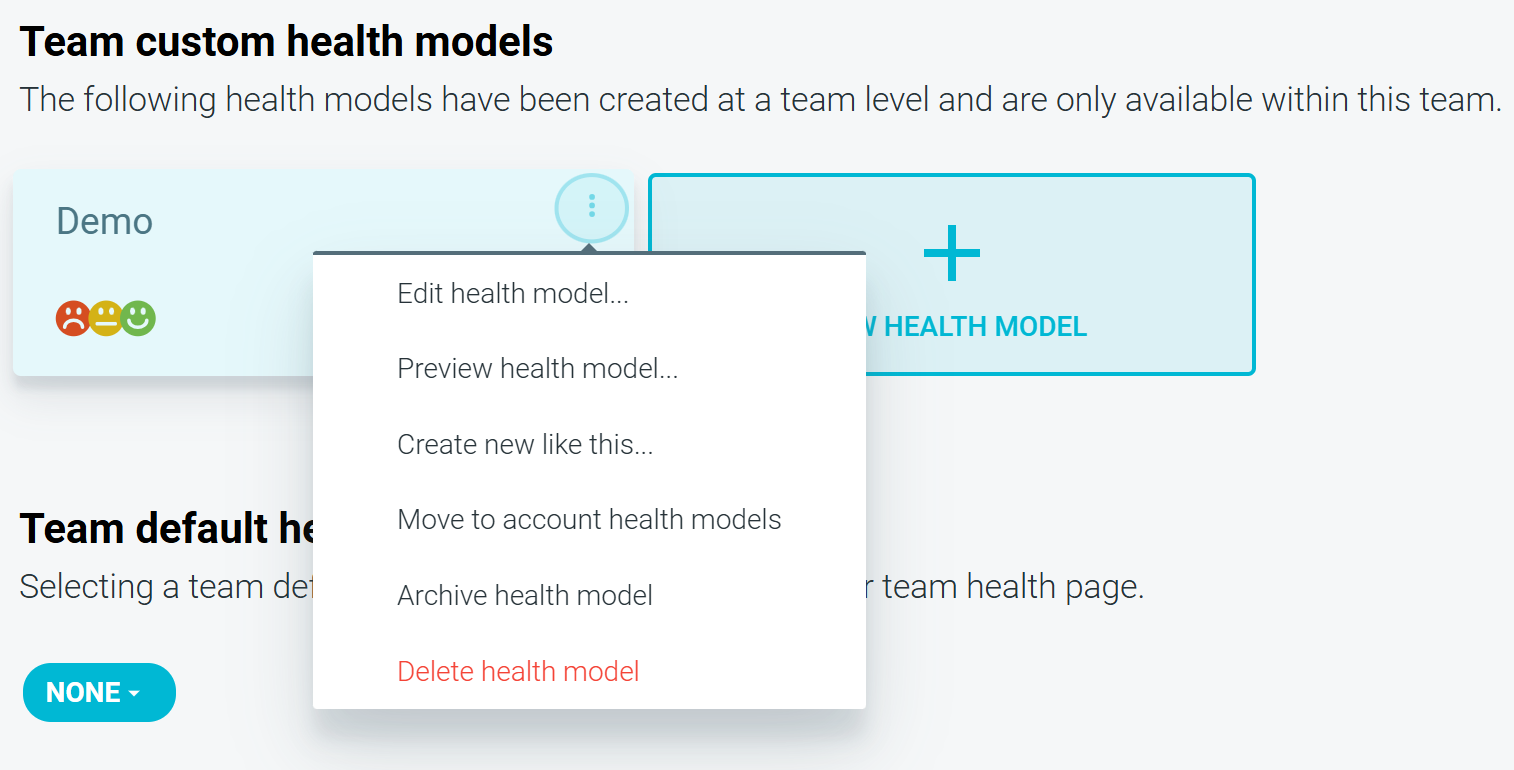
Find the model you’d like to edit. Click the OPTIONS menu (three dots) on the top right. Select EDIT HEALTH MODEL to update.
-
You can EDIT, PREVIEW, CREATE NEW LIKE THIS (duplicate), or DELETE your maturity models.
- Once you have made edits to your maturity model, SAVE the template and the changes will be reflected in maturity model meetings going forward.
