
Customizing your maturity model template
If you have used a preset template, you can customize it for your meeting. You can change:
- Titles
- Anonymity settings
- Process steps (including which steps and the defaults for each step)
- Enabling or disabling a variety of features such as gifs, comments and live reactions.
If you want to create a new maturity model template, you can create your own maturity model template (Learn more)
Customize a template
-
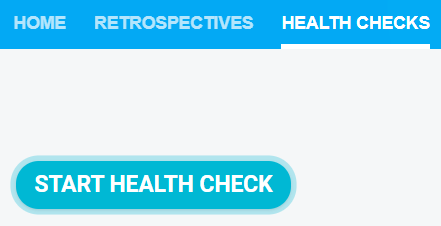
Navigate to your team's HEALTH CHECKS tab.

-
Click START HEALTH CHECK.
-
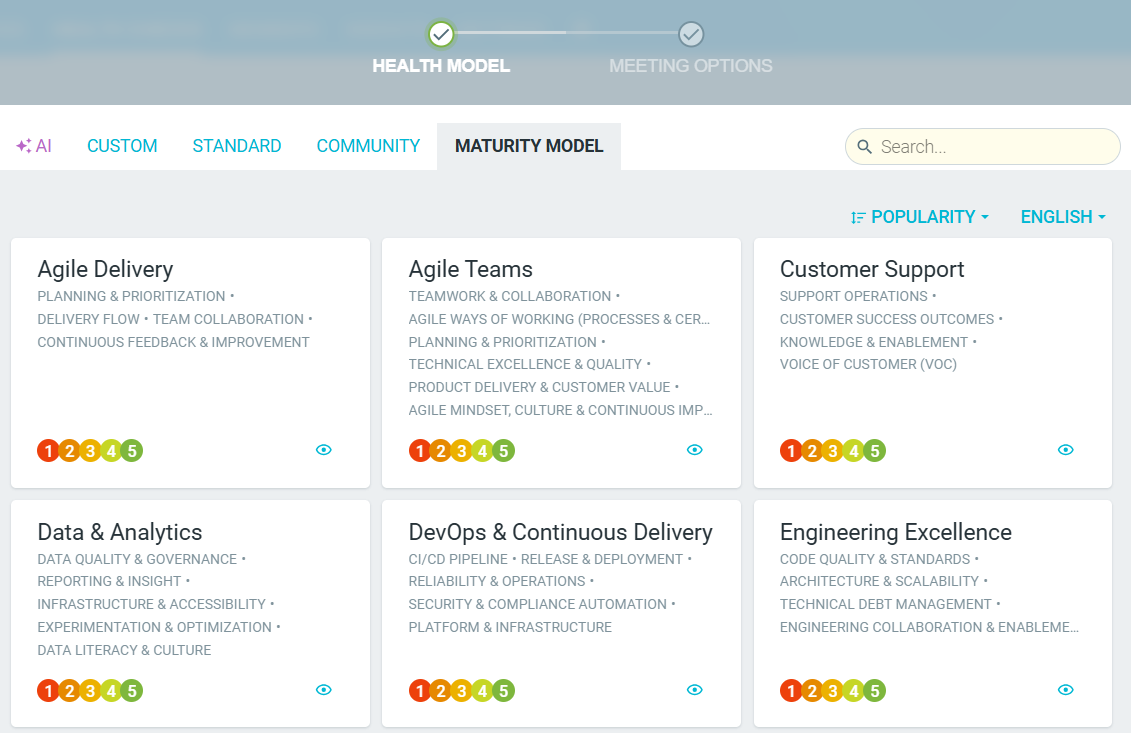
Choose your preferred model from a list or pre-defined categories or create a CUSTOM one.
-
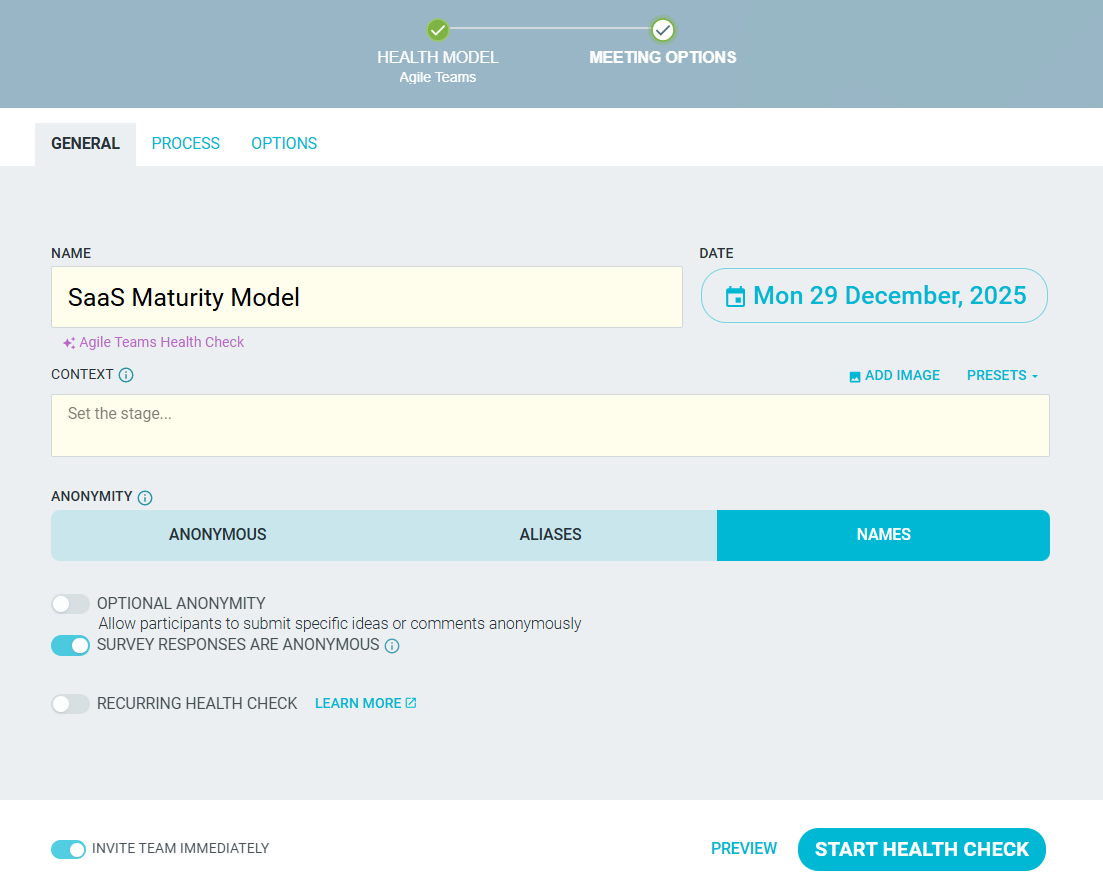
Change the TITLE for your meeting, give CONTEXT to set the stage, and choose your ANONYMITY level.
Decide whether survey responses should be ANONYMOUS, ALIAS or NAMED.
You can enable OPTIONAL ANONYMITY for fully named meetings to give people the option to make specific comments anonymous. (Learn more)
You can also make your meetings RECURRING.
Lastly, choose whether to INVITE TEAM IMMEDIATELY to have participants receive meeting invitations as soon as it starts.
-
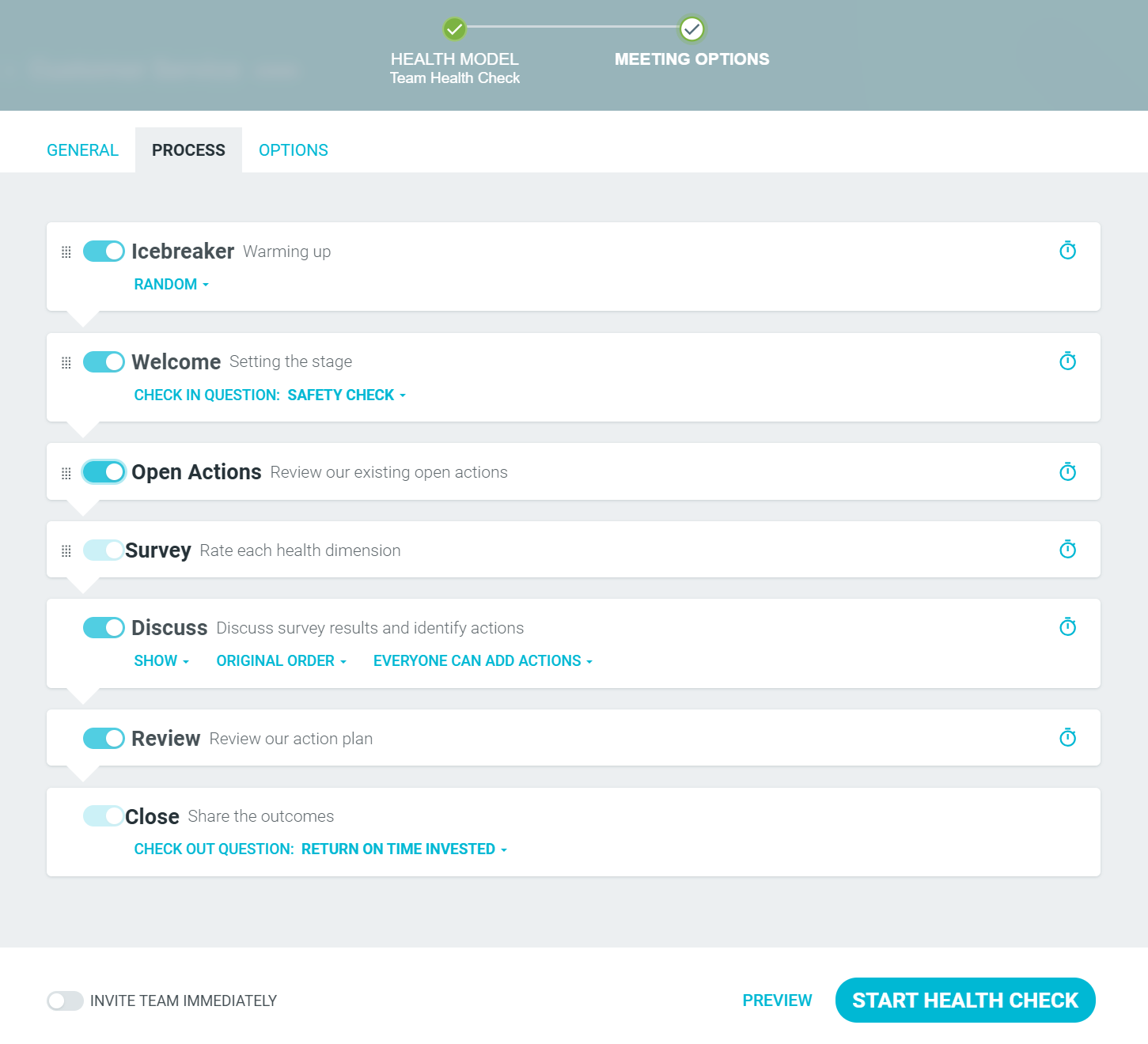
Use the PROCESS tab to enable/disable steps, reorder steps, and set the defaults of each step, including a timer. Please note that you cannot disable the Survey and the Close steps.
- Use the OPTIONS tab to enable/disable additional features such as:
- ADD COMMENTS DURING SURVEY
- LIVE FEEDBACK AND REACTIONS
- COMMENTS
-
COMMENT REACTIONS
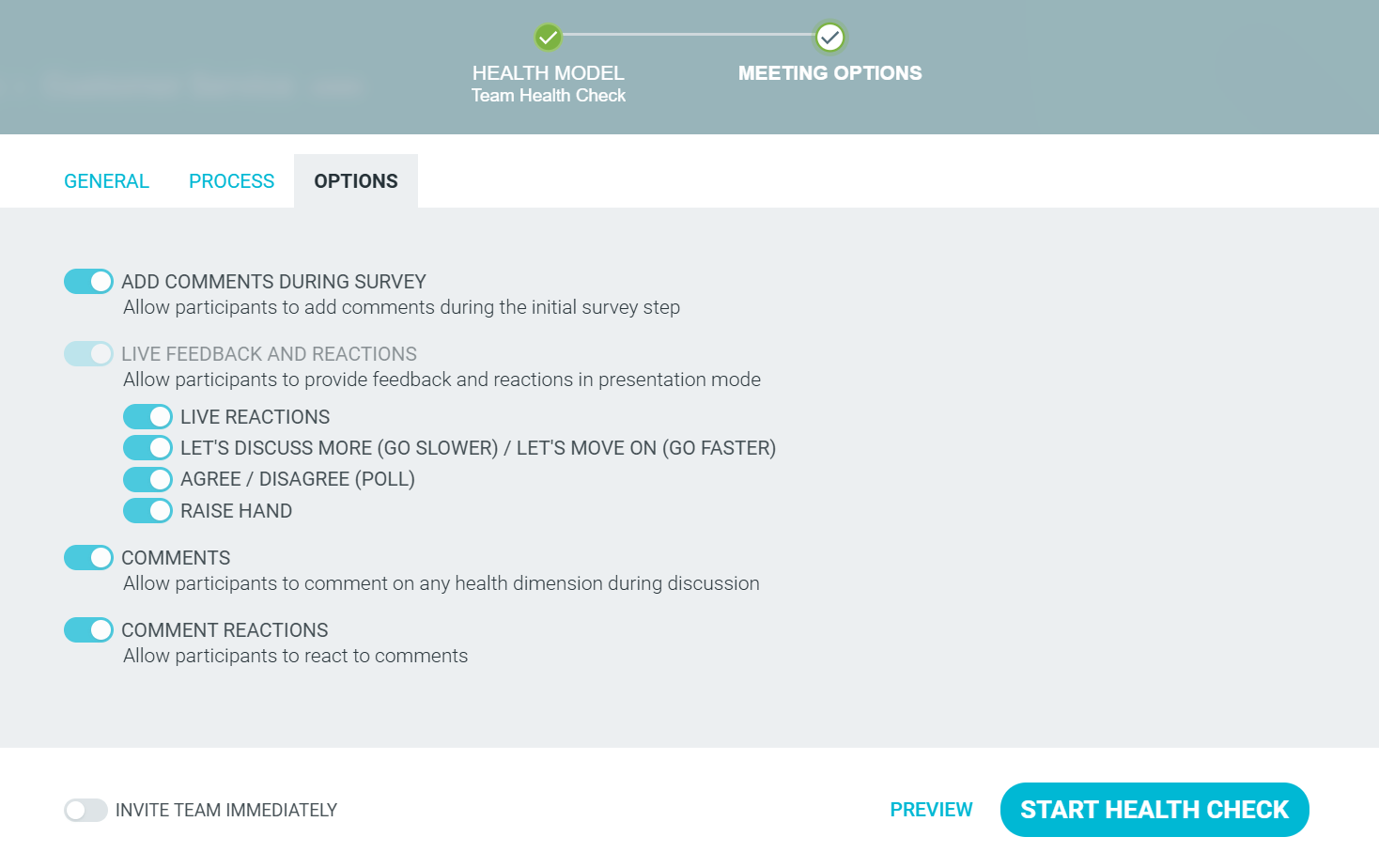
- When you're ready, click START HEALTH CHECK, and your maturity model is ready for your team!
Customize an existing template
- Locate the health check within your team and open it.
-
Click on the OPTIONS icon on the top left, followed by CUSTOMIZE.
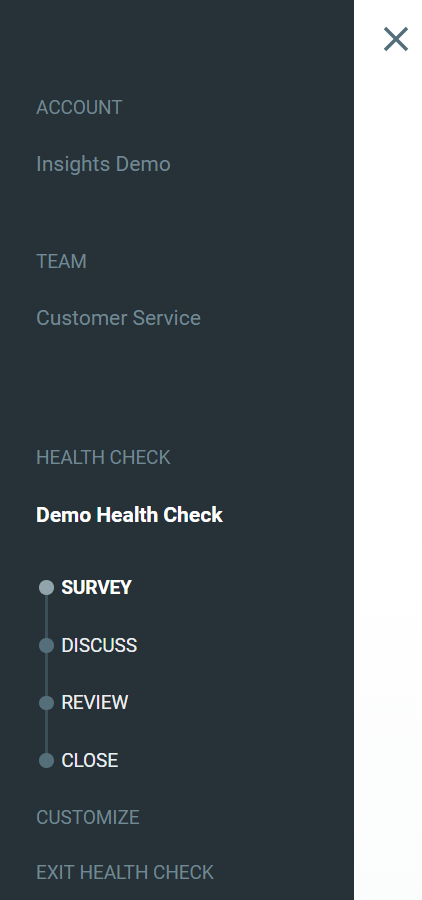
- Follow the instructions above.