
Recurring Maturity Models
Only Team Administrators have the ability to set the recurrence of a meeting.
Recurring maturity model health checks help you consistently track team sentiment and health across multiple dimensions over time. Instead of creating each health check manually, TeamRetro will automatically generate a new one on your chosen schedule—so regular check-ins happen with less effort.
Because participants can respond as soon as a session is available, recurring health checks also work well for asynchronous teams.
Only one recurring health check can be active per team at any time.
Invitations and invite codes will remain valid for future health checks. Permalinks will always point to the most recent health check.
How recurring maturity model health checks work
- A new health check is automatically created when:
- the current one is closed, or
- one day after the scheduled date of the previous check (if left open).
- Participants can add their responses ahead of time once a session is available.
- Emails will be sent if the INVITE TEAM IMMEDIATELY option is enabled.
Creating a new recurring maturity model health check
-
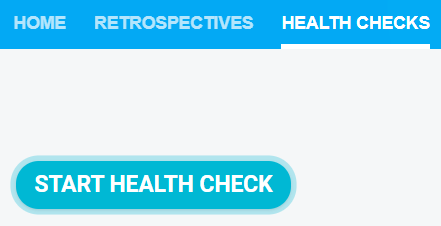
Navigate to your team's HEALTH CHECKS tab.

-
Click START HEALTH CHECK.
-
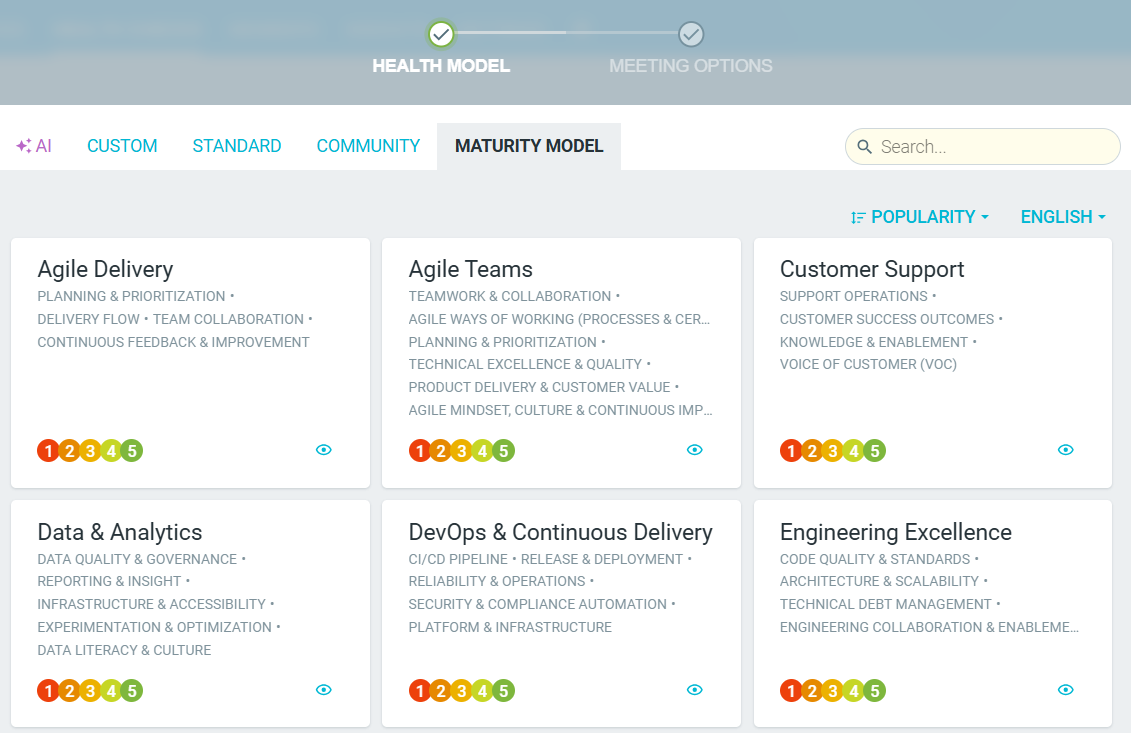
Choose your preferred model from a list or pre-defined categories or create a CUSTOM one. If the meeting name ends with a number it will be auto-incremented the next time around. e.g. SaaS Maturity Model 1, SaaS Maturity Model 2.
-
Once you have selected your template, toggle on RECURRING HEALTH CHECK and select the frequency of your health check (e.g. every week, every two weeks etc.).

-
Turn on SEND EMAIL INVITATIONS so your team members can receive a notification closer to the next scheduled date.
-
If the INVITE TEAM IMMEDIATELY option is enabled, then participants will receive an email for the next health check right away.

-
Once you're all set, click START HEALTH CHECK.
- When you close the current health check, TeamRetro will automatically create the next one—and participants will see the new open health check on their dashboard.
Changing the frequency of your recurring meetings
- Locate the previous health check, then click on the OPTIONS (hamburger) icon at the top left of the screen, followed by CUSTOMIZE.

- Toggle on RECURRING HEALTH CHECKS. Select the frequency of your health checks (e.g. every week, every two weeks etc.) Then click SAVE CHANGES.

Canceling your recurring meetings
-
Go to your Team's HEALTH CHECKS page.
- Locate the recurring model, click on the OPTIONS Icon (3 dots) and CANCEL RECURRENCE.

This will stop future sessions from being created but will not delete any existing maturity model data.